How do I find the bookmark manager on Chrome for Android?
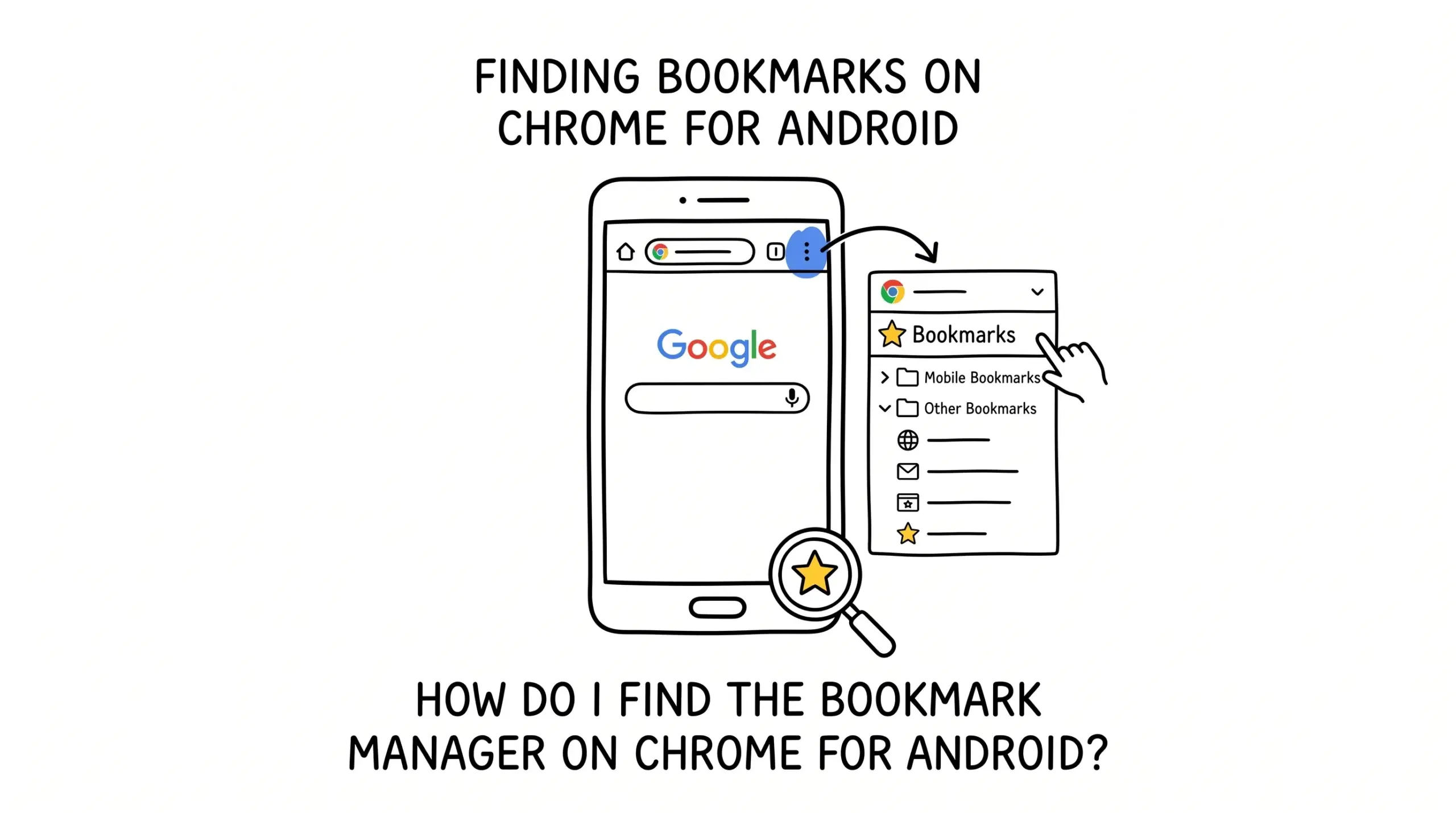
You can find the bookmark manager on Chrome for Android by opening Chrome, tapping the three-dot menu in the top right, and selecting Bookmarks, where all your saved pages are organized into folders and lists.
Step by step: how to open bookmarks in Chrome Android
- Open the Chrome browser on your Android device
- Tap the three-dot menu in the top right corner
- Select Bookmarks from the dropdown
- Browse folders like Mobile Bookmarks and other synced folders
- Tap any bookmark to open it instantly
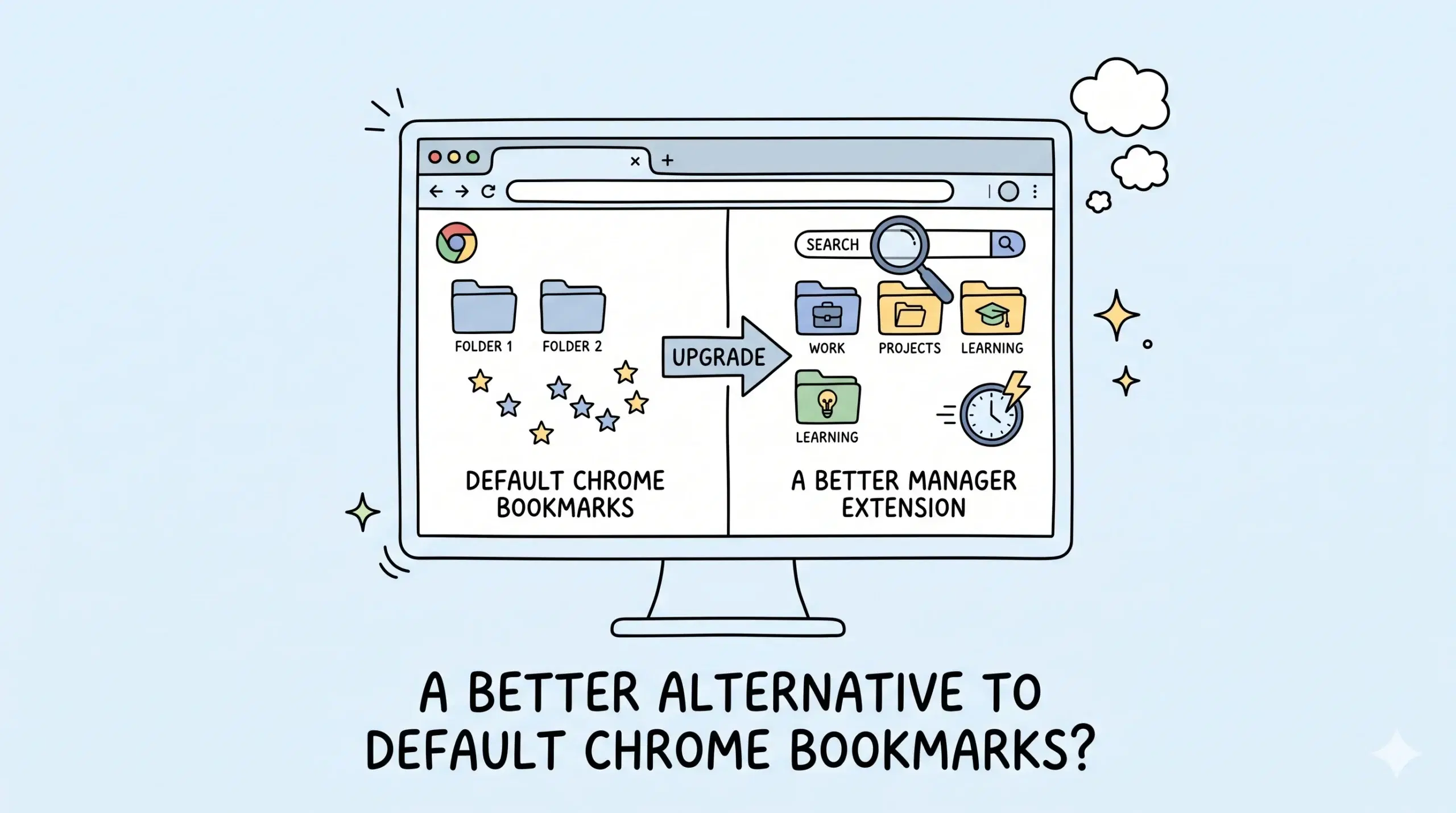
This built-in bookmark manager works for basic use, but it is limited when you need structured organization, tagging, or fast retrieval across devices. That is where a dedicated Chrome bookmark manager extension becomes useful for more advanced workflows.
If you want a clearer system beyond the default mobile view, the platform specific guide explains how a Chrome bookmark manager extension fits into Android and desktop workflows together.
What the Android bookmark manager can and cannot do
Chrome on Android is designed for quick access, not deep organization. You can save, edit, and move bookmarks, but features like bulk editing, advanced sorting, or tagging are not available natively.
- Supports basic folders and manual sorting
- Syncs bookmarks with your Google account
- Does not support extensions on mobile
- Limited search and categorization options
For a broader understanding of how Chrome bookmark management works across devices, including desktop extensions that complement Android usage, explore the main Chrome bookmark manager guide.
Why bookmark organization becomes difficult on Android
As your saved links grow, finding the right bookmark quickly becomes harder because the Android interface lacks advanced filtering or tagging. This creates friction for project managers and developers who rely on fast retrieval during workflows.
According to Google support documentation, bookmarks saved in Chrome are synced across devices when you are signed in, which means poor organization on mobile can affect your entire browsing setup.
This is why many users manage bookmarks on desktop using an extension and then access them on Android through sync. It creates a cleaner system without being limited by mobile constraints.
Google also confirms that bookmarks on Android are primarily accessed through the menu interface rather than a dedicated manager screen, which explains why advanced control is minimal compared to desktop.
Practical workflow example
A developer researching tools might save dozens of links on mobile during the day. Instead of trying to organize everything on Android, they later use a Chrome bookmark manager extension on desktop to group, tag, and structure those links. The cleaned system then syncs back to Android, making retrieval simple and fast.
Is there a separate bookmark manager app in Chrome Android?
No, Chrome Android includes bookmarks inside the browser menu rather than a standalone manager interface.
Can I install bookmark manager extensions on Android Chrome?
No, Chrome on Android does not support extensions, so advanced management must be done on desktop.
How do I organize bookmarks better across devices?
Use a Chrome bookmark manager extension on desktop to structure bookmarks, then rely on sync to access them cleanly on Android.
Organize your bookmarks properly
Stop relying on basic mobile folders. Use a structured Chrome bookmark manager extension to organize, search, and retrieve links faster across all your devices.