What is the keyboard shortcut for the Bookmark Manager in Chrome?
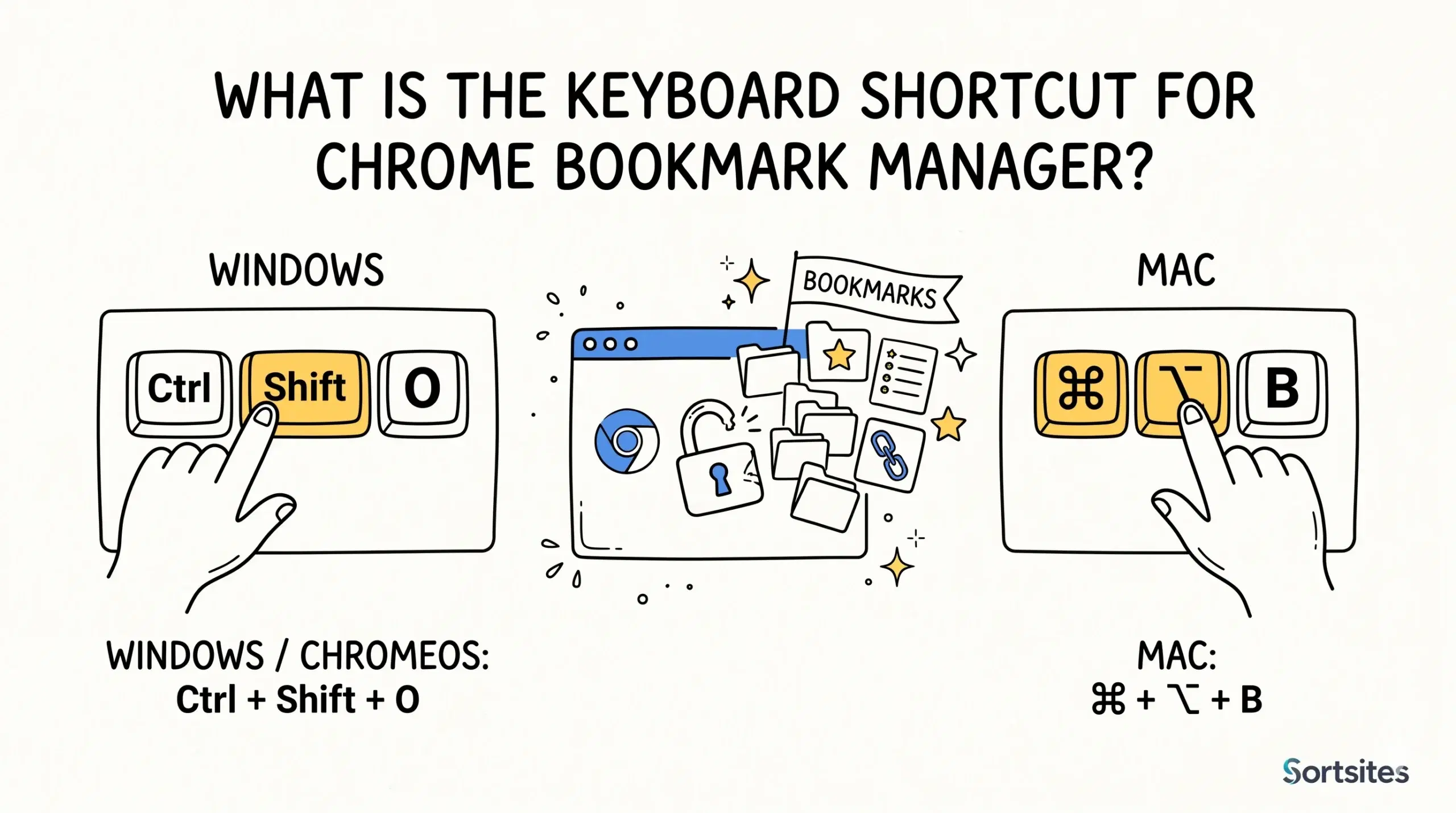
The keyboard shortcut for the Bookmark Manager in Chrome is Ctrl + Shift + O on Windows and ChromeOS, while many Mac setups use Command + Option + B to open bookmark tools quickly.
Fastest ways to open Bookmark Manager
- Windows and ChromeOS: Ctrl + Shift + O
- Mac: Command + Option + B on many Chrome versions
- Chrome menu: Bookmarks and lists, then Bookmark Manager
- Type chrome://bookmarks in the address bar
If you cannot find Bookmark Manager in Chrome or the shortcut is not working, visit the access and usage problems page for step by step fixes and better bookmark workflows.
Why shortcuts matter
Keyboard shortcuts remove friction. If you open saved links many times a day, a shortcut is faster than navigating menus each time. For project managers and developers, small time savings repeat across every task.
For broader bookmark organisation strategies, explore the main Chrome bookmark manager guide and learn how to move beyond basic folders.
When the default manager is not enough
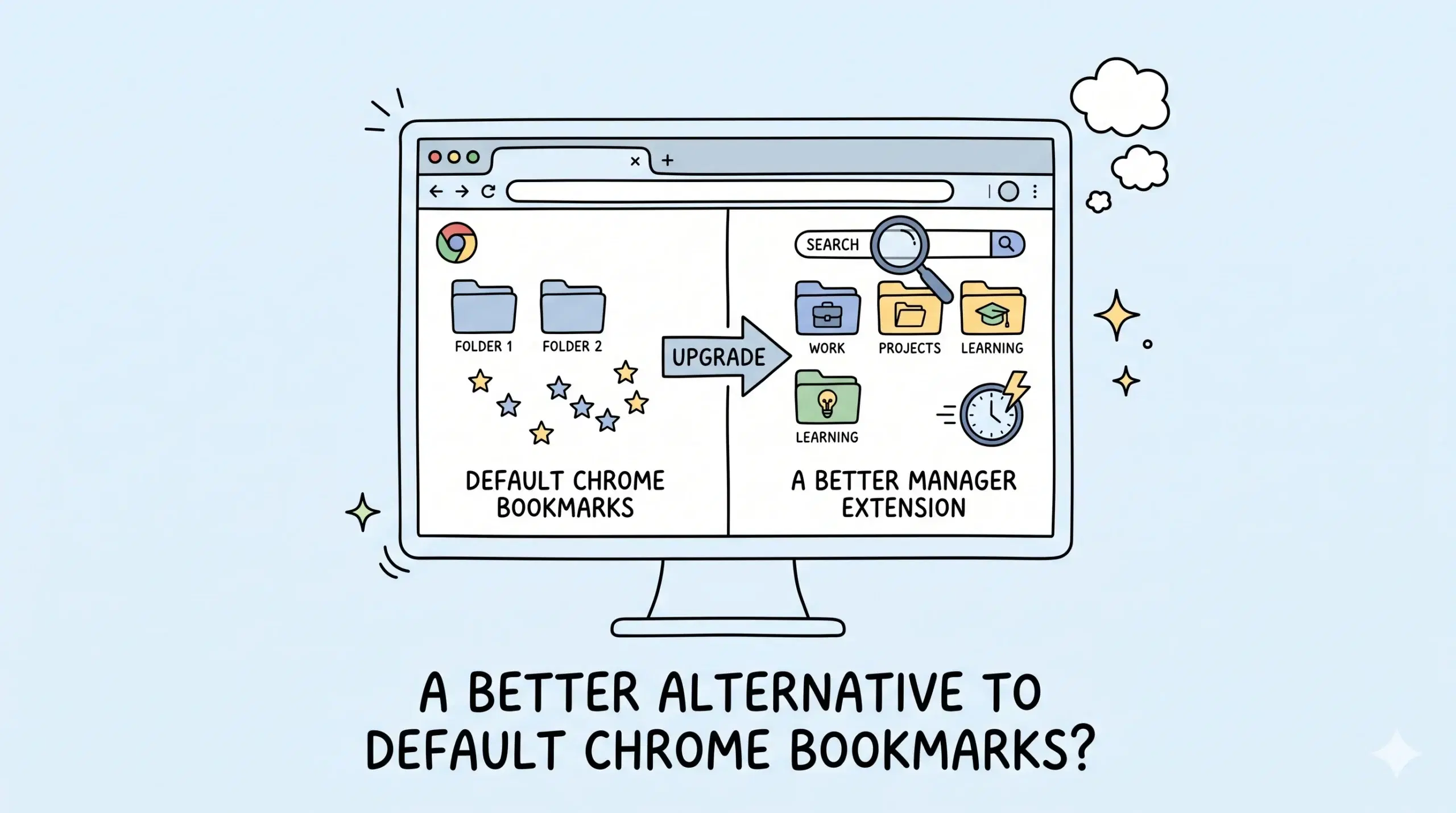
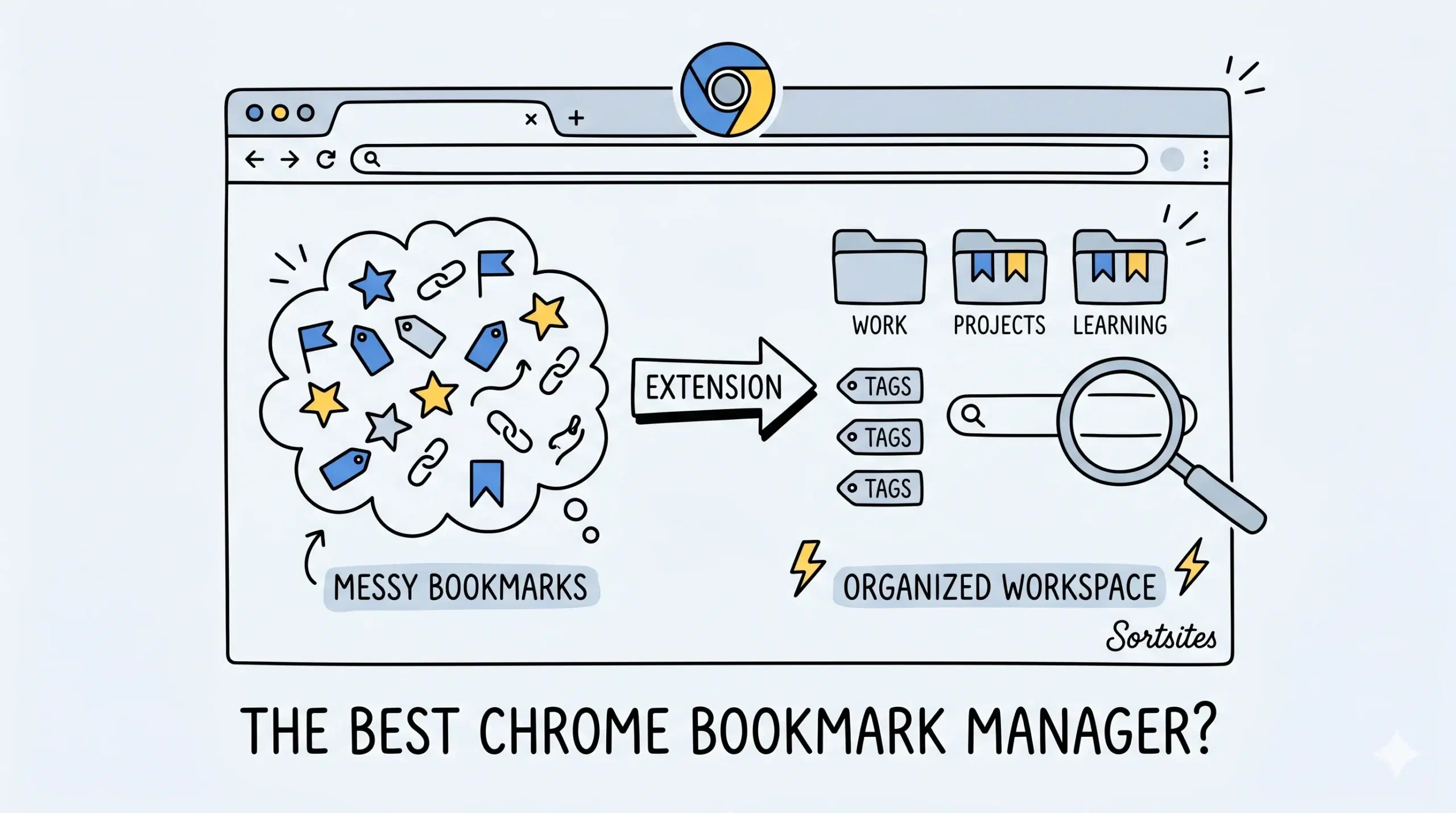
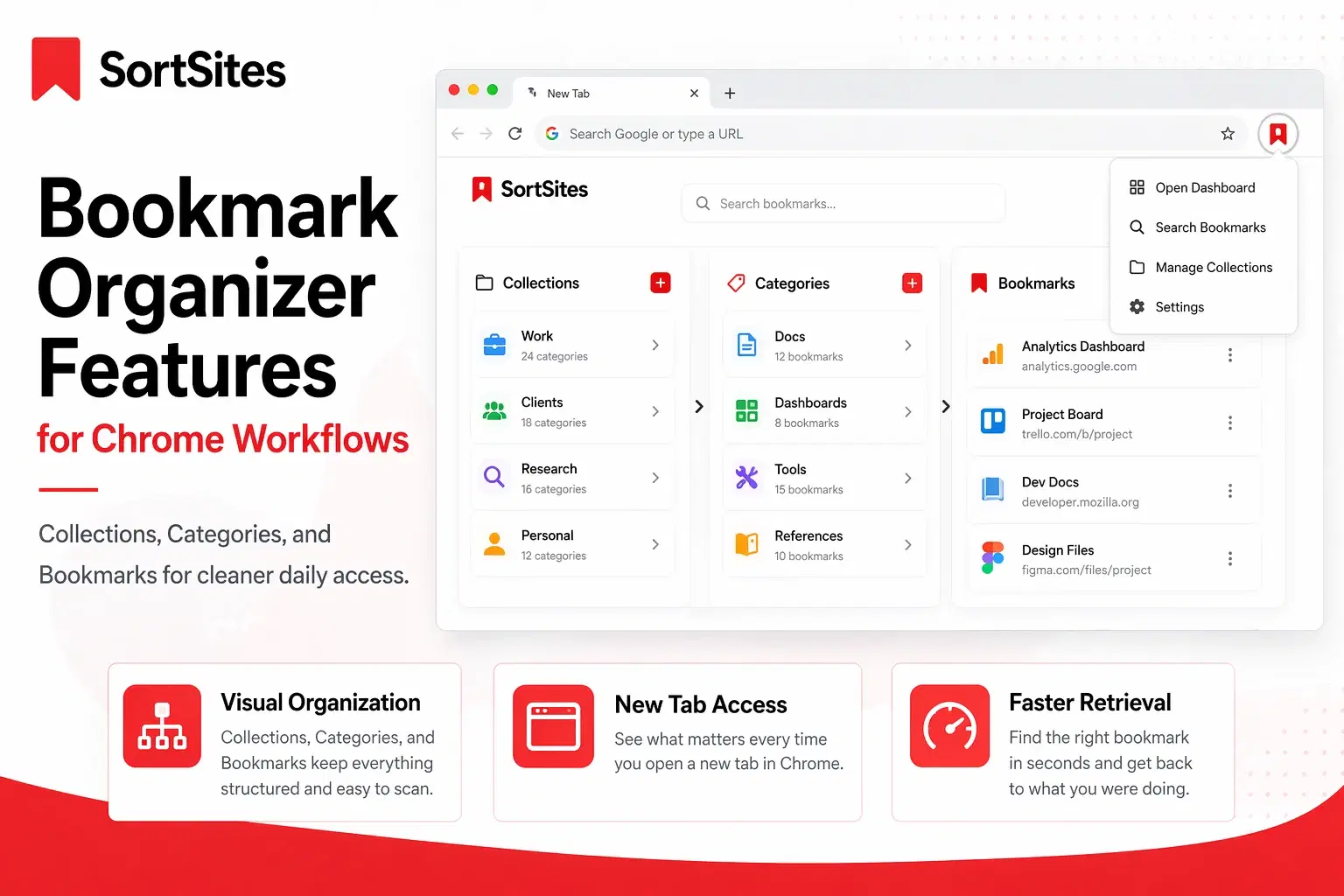
Opening Bookmark Manager is only the first step. Many users still struggle with cluttered folders, slow retrieval, and scattered research links. A Chrome bookmark manager extension like Sortsites helps organise bookmarks into a cleaner system built for daily work.
Evidence-backed references
Google support confirms Chrome can sync bookmarks across signed-in devices, making organised bookmarks more useful across laptops and mobile devices.
Google Chrome accessibility documentation lists many built-in keyboard shortcuts, showing how Chrome is designed for shortcut-driven navigation and efficiency.
Where is Bookmark Manager in Chrome if the shortcut fails?
Open the Chrome menu, go to Bookmarks and lists, then choose Bookmark Manager.
Can a bookmark manager extension replace the default tool?
It can enhance the default experience by adding stronger organisation, search, and faster retrieval inside Chrome.
Improve Chrome bookmark workflows
Use Sortsites to organise bookmarks beyond the default Chrome manager.