How do I open the Bookmark Manager in a new tab?
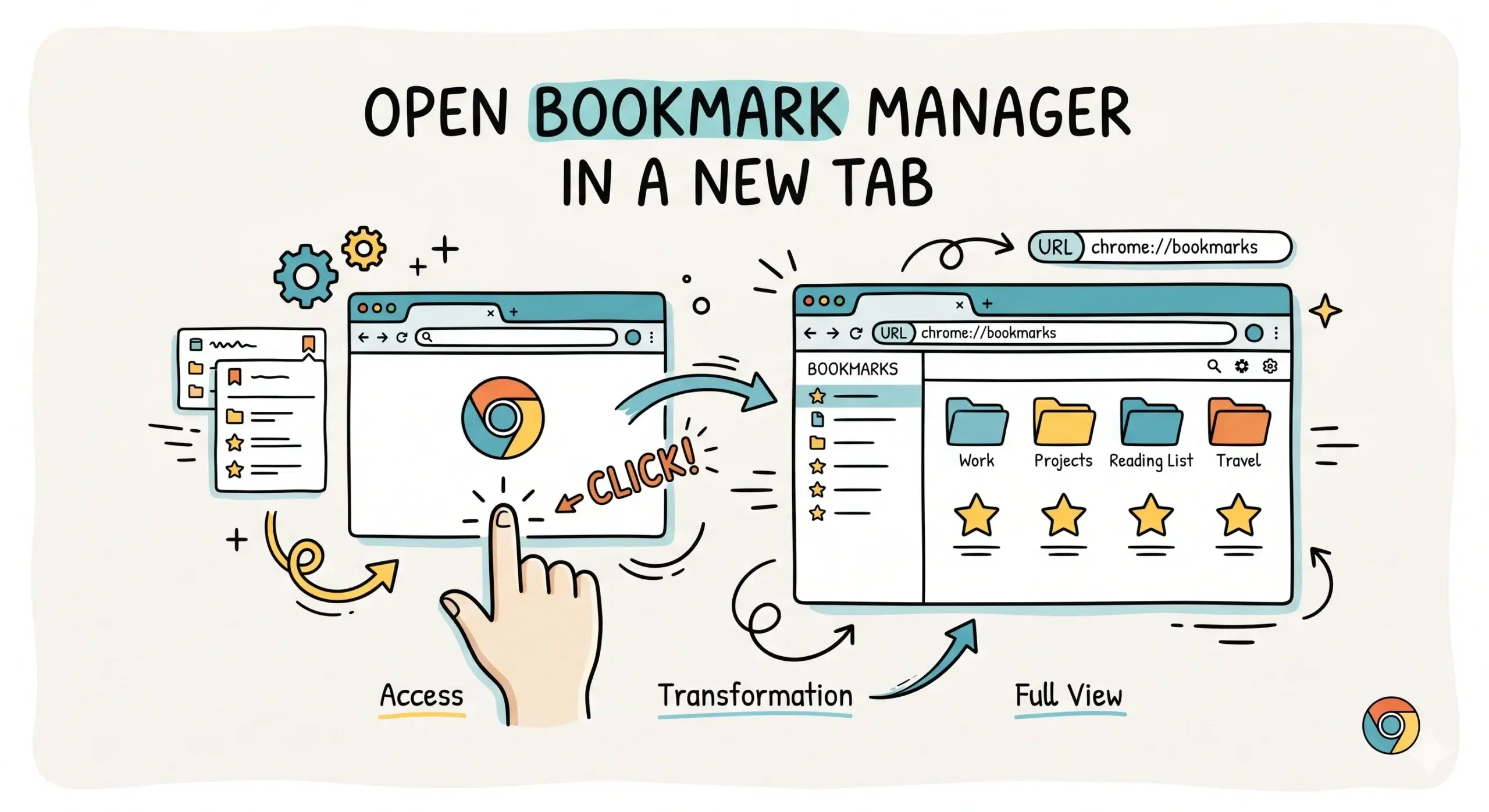
To open the Bookmark Manager in a new tab in Chrome, press Ctrl plus Shift plus O or type chrome://bookmarks into the address bar and hit Enter, which launches the full tab bookmark manager interface.
Fastest ways to open the Bookmark Manager
- Use keyboard shortcut Ctrl plus Shift plus O on Windows or Cmd plus Option plus B on Mac
- Type chrome://bookmarks directly in the address bar
- Open Chrome menu, go to Bookmarks, then click Bookmark Manager
All three methods open the Bookmark Manager in a dedicated tab, giving you a structured overview of folders, saved links, and sorting options. This is the standard answer to where is bookmark manager in Chrome when users want a full screen experience.
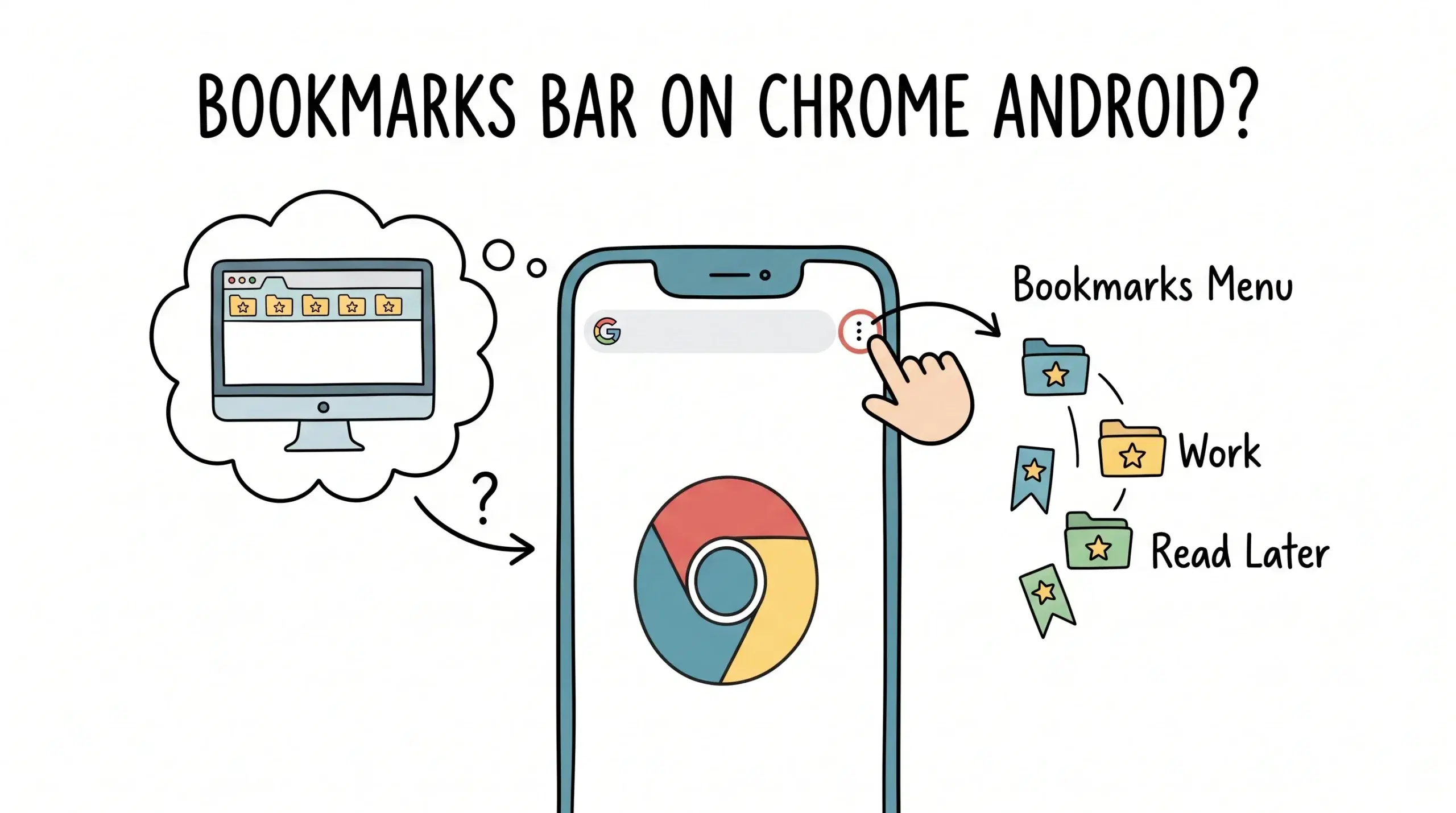
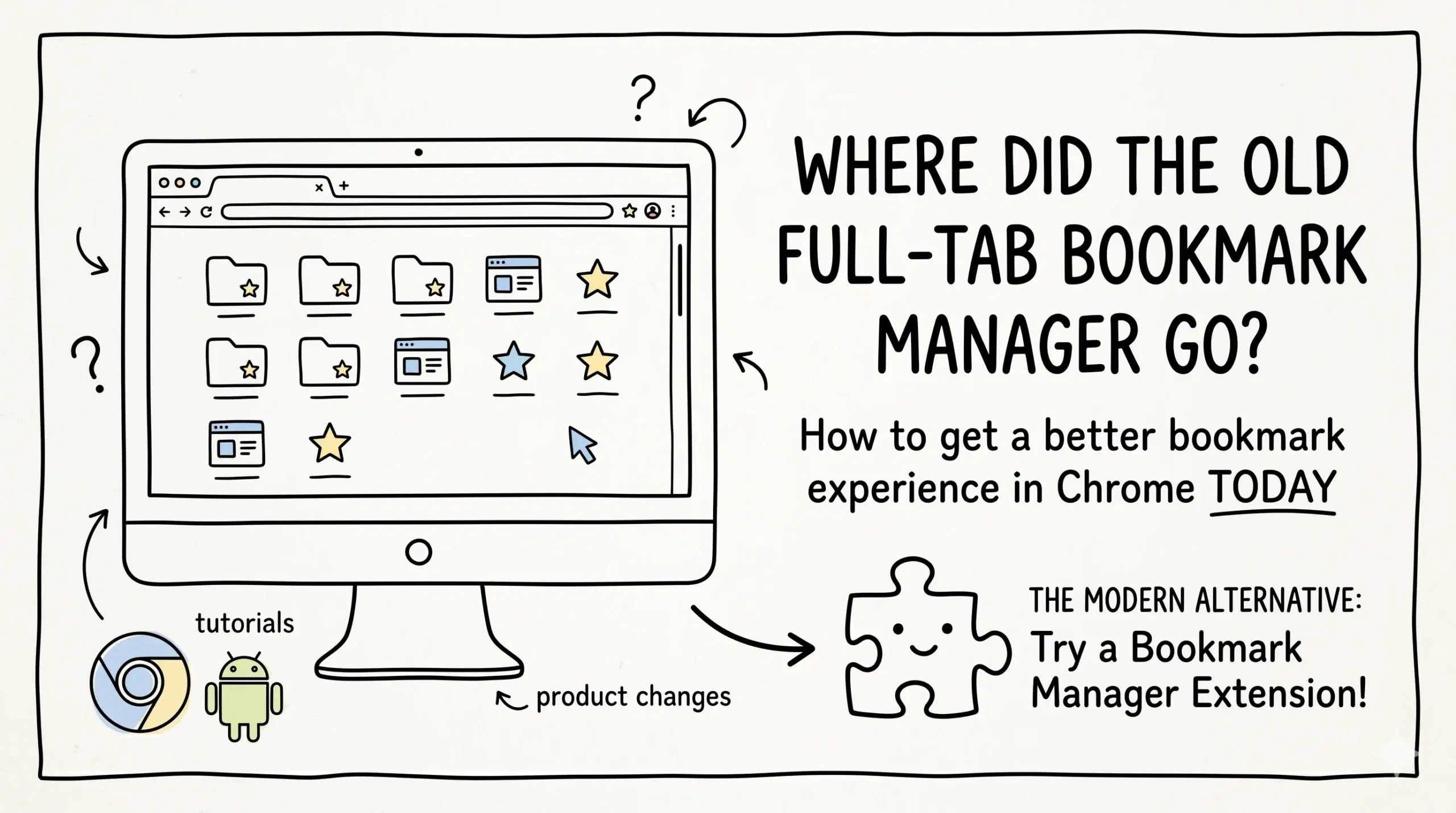
If you cannot find bookmark manager in Chrome or it does not behave as expected, this guide on common access issues and fixes explains exactly what to do next.
Why opening it in a new tab matters
Opening bookmarks in a full tab is not just about visibility. It enables faster sorting, bulk editing, and clearer navigation across large bookmark collections. For project managers and developers handling dozens or hundreds of links, this directly improves workflow efficiency.
If you regularly manage complex bookmark sets, using a dedicated Chrome bookmark manager extension gives you more control than the default interface and aligns better with structured workflows.
Limitations of the default Chrome Bookmark Manager
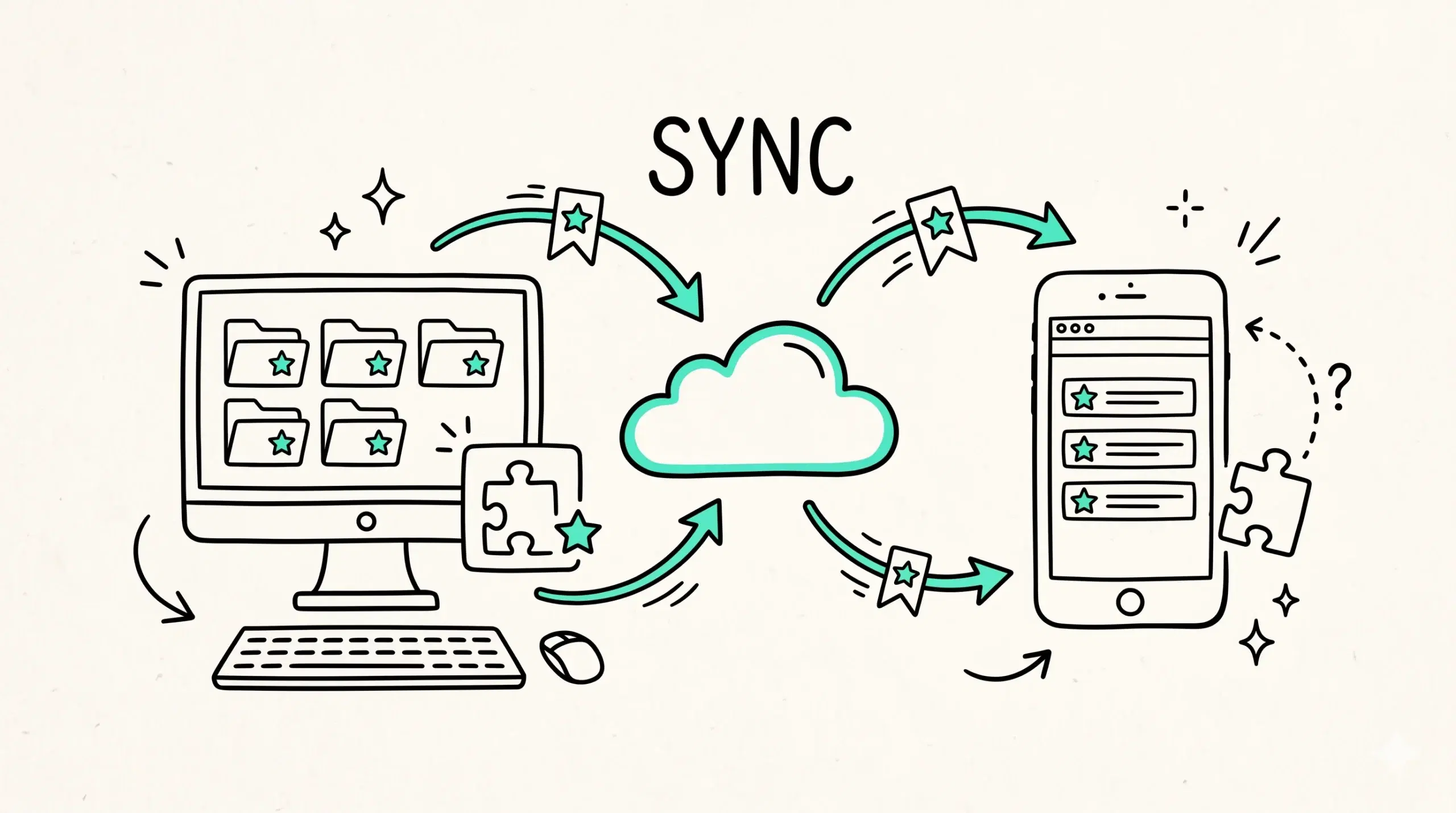
While Chrome provides a built in bookmark manager, it has limitations in tagging, grouping logic, and quick retrieval. This becomes more noticeable as your bookmark volume grows.
According to official Chrome support documentation, bookmarks are stored locally and synced through your Google account, which can lead to duplication or clutter without structured organization practices.
This explains why many users feel that even after opening the bookmark manager in a new tab, they still struggle with organization and retrieval.
Chromium documentation also confirms that bookmark data is structured in a hierarchical tree model, which works well for simple use but becomes inefficient for complex categorization without additional tooling.
Better workflow with a bookmark manager extension
Opening the bookmark manager in a new tab is the first step, but maintaining a clean system requires more advanced control. A Chrome bookmark manager extension helps you organize bookmarks faster, reduce clutter, and retrieve links instantly.
FAQ
Why cannot I open bookmark manager in Chrome?
This usually happens due to disabled shortcuts, Chrome profile issues, or extensions interfering with default behavior. Using the chrome://bookmarks URL is the most reliable method.
Does Chrome always open bookmark manager in a new tab?
Yes, when accessed via shortcut or URL, it opens in a dedicated tab rather than a popup.
Is there a better way to manage bookmarks than Chrome default?
Yes, using a dedicated bookmark manager extension provides better organization, tagging, and faster retrieval compared to Chrome built in tools.
Organize your bookmarks properly
Stop wasting time searching through cluttered bookmarks. Use a structured Chrome bookmark manager built for real workflows.