How can I create a desktop shortcut for the Chrome bookmark manager?
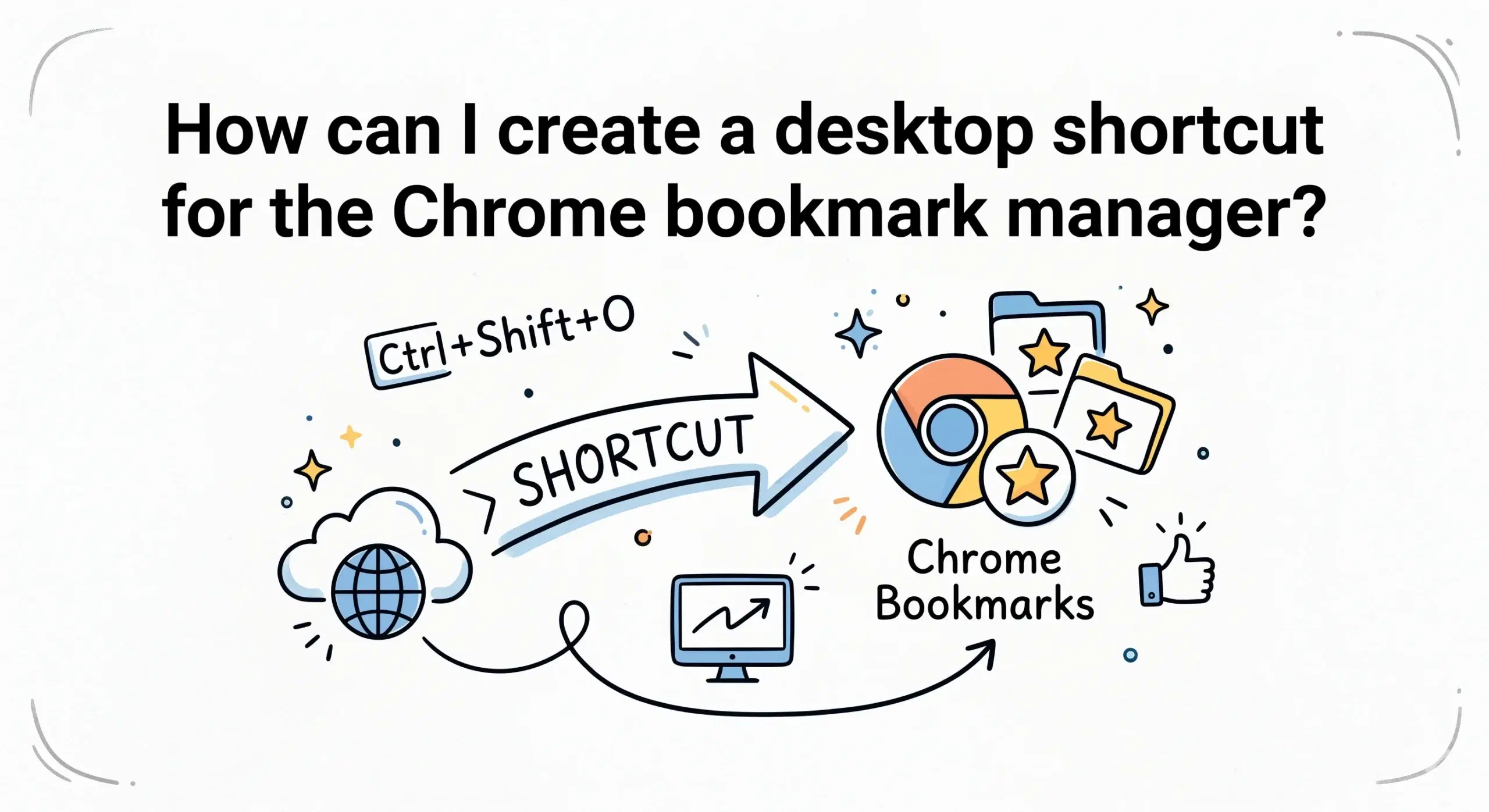
You can create a desktop shortcut for the Chrome bookmark manager by turning the bookmarks page into a shortcut or by using a direct Chrome URL like chrome://bookmarks and saving it to your desktop for instant access. This simple setup becomes significantly more powerful when paired with a Chrome bookmark manager extension that improves organization and retrieval speed.
Method 1: Create a desktop shortcut using Chrome
The most straightforward way is to open the Chrome bookmark manager and convert it into a desktop shortcut. First, type chrome://bookmarks into your address bar. Then click the three dot menu in Chrome, go to More tools, and choose Create shortcut. Name it appropriately and ensure the option to open as a window is selected if you want a focused experience.
Once you create this shortcut, combining it with a structured system from a bookmark organizer makes it far more effective, especially when using a visual bookmarking tool that allows faster scanning and grouping of links.
Method 2: Drag and drop to desktop
Another quick method is dragging the lock icon or URL from the Chrome address bar directly to your desktop. This creates a clickable shortcut file that opens the bookmark manager instantly in Chrome.
While this approach is fast, it does not solve the deeper issue of bookmark overload. A dedicated Chrome bookmark manager provides a cleaner interface, tagging, and search capabilities that go beyond default Chrome behavior.
Method 3: Use a keyboard shortcut alternative
If you do not want a desktop shortcut, Chrome already provides a built in shortcut to open the bookmark manager instantly. On most systems, pressing Ctrl plus Shift plus O opens it directly without navigating menus.
Chrome officially documents that keyboard shortcuts can significantly speed up navigation tasks, including accessing bookmarks instantly through predefined key combinations.
Why a desktop shortcut alone is not enough
Creating a shortcut solves access speed, but not organization. Many users still struggle with cluttered folders, duplicate links, and slow retrieval. This is where a bookmark cloud or online bookmark manager becomes essential for maintaining structured workflows.
Chrome allows users to create app style shortcuts that open in dedicated windows, but this feature is primarily designed for web apps rather than managing complex bookmark systems.
Practical example for workflow improvement
A project manager handling multiple tools like dashboards, documentation, and client portals can create a desktop shortcut for quick access, then use a structured bookmark management software to group links by project. This reduces time spent searching and improves daily efficiency.
Can I pin the bookmark manager instead of creating a desktop shortcut?
Yes, you can pin Chrome or specific tabs to your taskbar, but a desktop shortcut gives more direct and flexible access.
Does a Chrome bookmark manager extension replace the default manager?
It enhances it by adding better organization, search, and visual layout while still using Chrome as the base platform.
Is the chrome bookmarks page URL safe to use as a shortcut?
Yes, chrome internal URLs like chrome://bookmarks are safe and commonly used for quick access.
Organize your bookmarks beyond shortcuts
Create smarter workflows with a powerful Chrome bookmark manager extension designed for fast access and clean organization.