How do I manage extensions in Chrome?
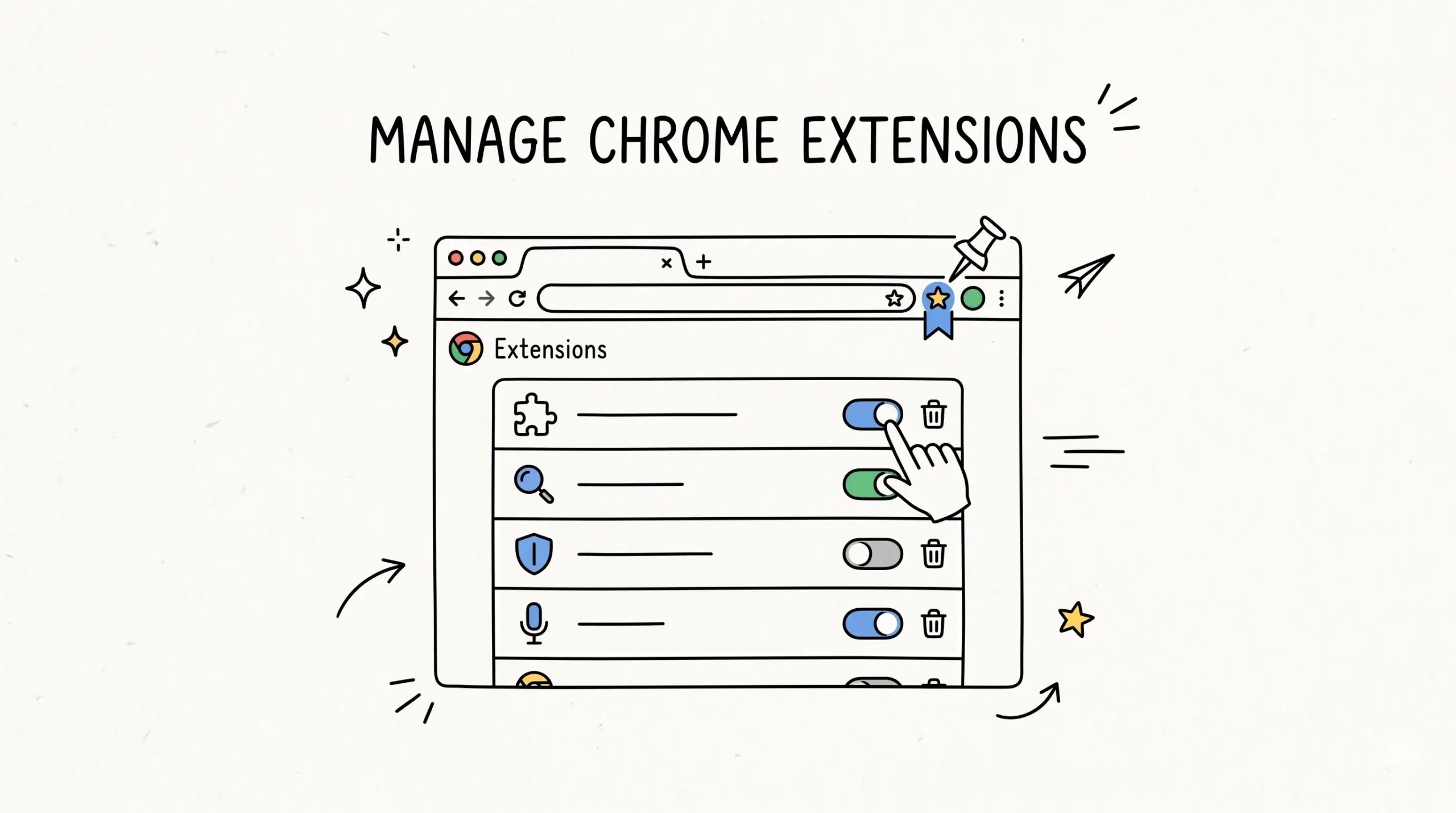
You can manage extensions in Chrome by opening the extensions page through the three dot menu, selecting Extensions, and then using the controls to enable, disable, remove, or configure each extension. This becomes especially useful when working with tools like a Chrome bookmark manager extension that directly impact your workflow efficiency.
Open the Chrome extensions manager
To access all installed extensions, click the three dot menu in Chrome, go to Extensions, and choose Manage Extensions. You can also type chrome extensions in the address bar to open the same page instantly.
Once inside, you can install, configure, or remove tools like a bookmark manager extension that helps organize large sets of links more efficiently than the default browser system.
Enable, disable, or remove extensions
Each extension has a toggle switch that allows you to turn it on or off instantly. Disabling unused extensions helps reduce clutter and can improve browser performance. If an extension is no longer needed, you can remove it completely from the same screen.
- Toggle extensions on or off based on current tasks
- Remove extensions you no longer use
- Keep only essential tools active for better speed
Organize extensions for better workflow
Chrome allows you to pin extensions to the toolbar for quick access. This is particularly useful for frequently used tools such as a bookmark organizer or visual bookmarking tool that you rely on throughout the day.
A structured Chrome bookmark manager provides a central place to organize, search, and retrieve bookmarks quickly, making it one of the most valuable extensions to keep pinned and active.
Why managing extensions matters
Too many active extensions can slow down your browser and affect performance. Managing them regularly ensures that only necessary tools are running, improving speed and reducing conflicts.
Google documentation highlights that extensions can impact browser performance and should be reviewed regularly to maintain speed and stability.
Security and permissions awareness
Each extension requests specific permissions such as access to browsing data or tabs. Reviewing these permissions helps ensure you are only using trusted tools, especially when handling sensitive workflows or client data.
Chrome Web Store policies emphasize reviewing permissions and choosing trusted extensions to protect user data and maintain browser security.
Practical example
A web developer working across multiple projects may use several extensions for testing, documentation, and bookmarks. By disabling unused tools and keeping a bookmark manager extension active, they can reduce distractions and access critical resources instantly.
How do I open Chrome extensions quickly
Type chrome extensions in the address bar or use the extensions icon near the toolbar.
Do extensions slow down Chrome
Yes, too many active extensions can impact performance, especially those running background processes.
Can I use multiple bookmark manager extensions
You can, but it is usually better to use one well structured bookmark management software to avoid duplication and confusion.
Organize your browsing with the right extension
Use a powerful Chrome bookmark manager extension to streamline your workflow and manage bookmarks with clarity.