How do I export bookmarks from Chrome Android?
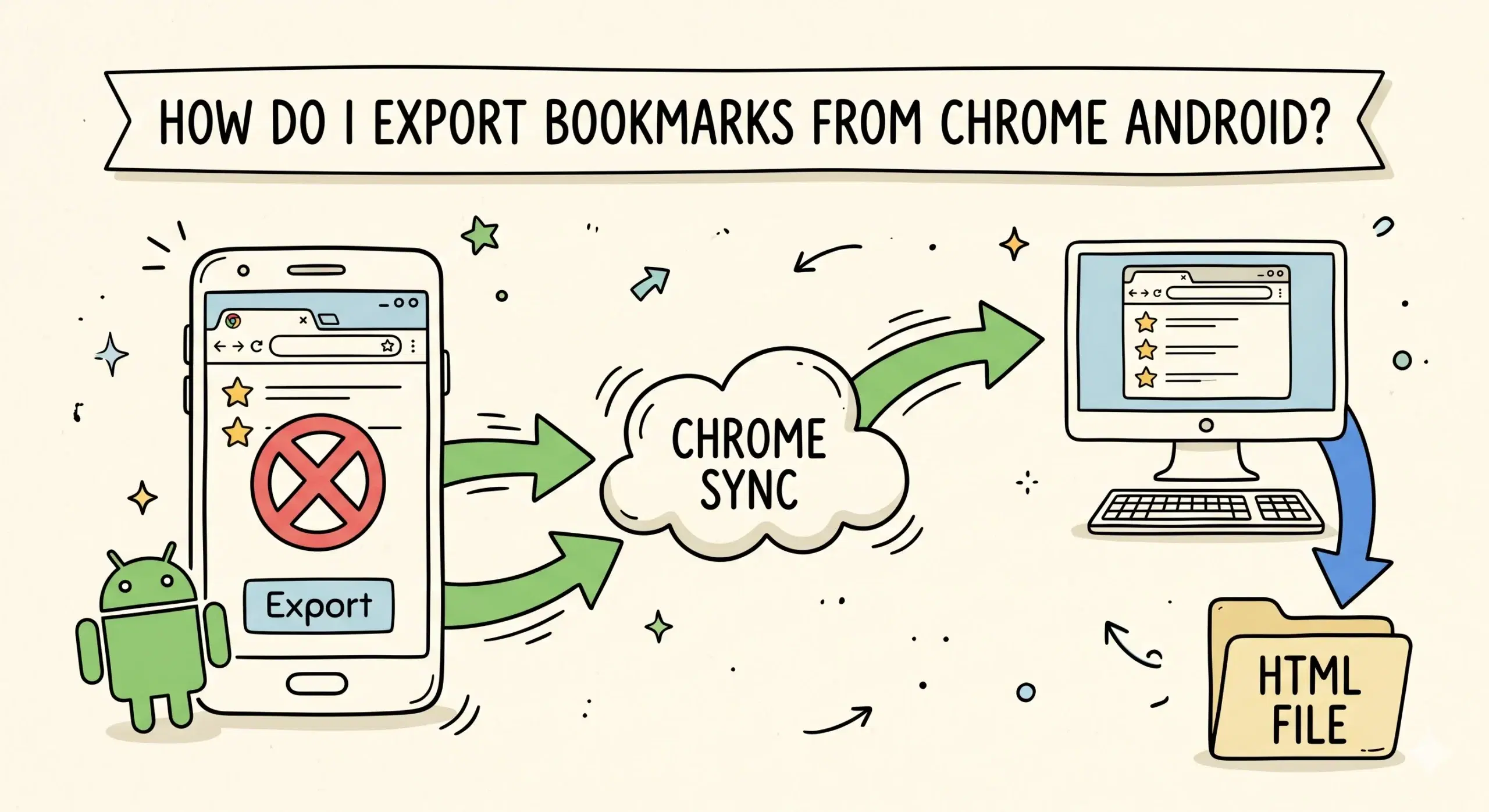
You cannot directly export bookmarks from Chrome Android, but you can export them by syncing your bookmarks to a desktop version of Chrome and then exporting them from there.
Why Chrome Android Does Not Support Direct Export
Chrome on Android does not include a built in export feature for bookmarks. Unlike desktop Chrome, which allows you to export bookmarks as an HTML file, the mobile version focuses on access and sync rather than file level control.
If you are working across devices and need reliable bookmark control, this platform specific guide explains how bookmark manager chrome android workflows should be structured for consistency.
Step by Step Workaround to Export Bookmarks
- Sign into Chrome on Android with your Google account
- Enable sync for bookmarks
- Open Chrome on your desktop with the same account
- Wait for bookmarks to sync
- Open the bookmark manager on desktop
- Use the export option to download bookmarks as an HTML file
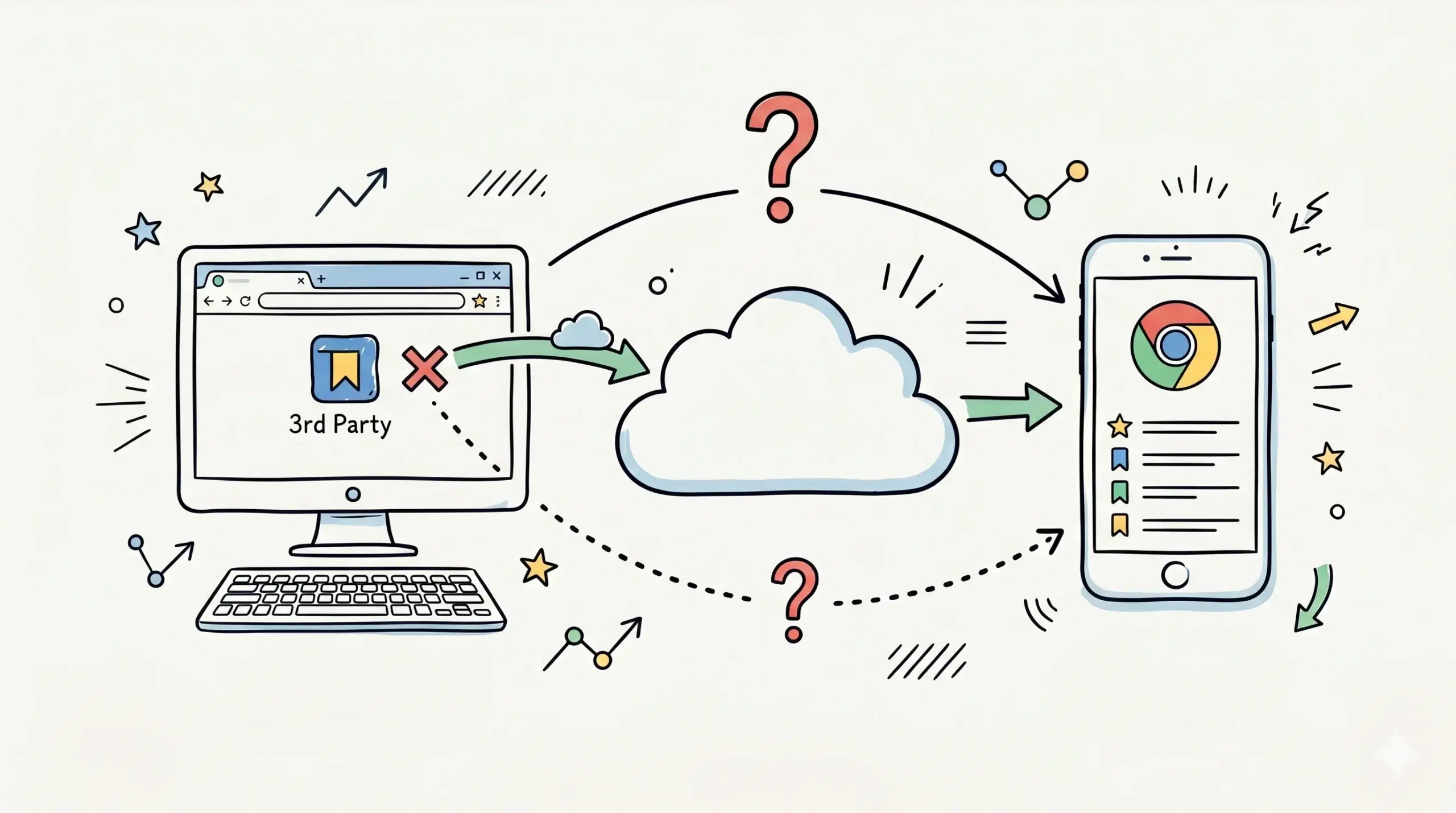
This approach uses Chrome sync as the bridge between mobile and desktop, allowing you to perform actions that are not available on Android directly.
How a Chrome Bookmark Manager Extension Helps
A Chrome bookmark manager extension gives you full control over your bookmarks once they reach desktop. You can organize, filter, tag, and prepare bookmarks before exporting them, making the process cleaner and more structured.
A complete chrome bookmark manager system ensures your bookmarks are not only exported correctly but also organized in a way that improves long term usability.
Important Limitations to Know
- No direct export option on Chrome Android
- Requires a desktop device for exporting bookmarks
- Depends on Chrome sync being enabled and working correctly
- No native file access for bookmarks on Android Chrome
Google documentation confirms that Chrome sync is the primary method for accessing bookmarks across devices, which is why exporting requires switching to desktop.
Android Chrome lacks export functionality because it prioritizes simplified user experience and cloud synchronization over advanced file operations.
Practical Use Case
A developer saving research links on Android during travel can later open Chrome on desktop, sync bookmarks, organize them using a Chrome bookmark manager extension, and export them into a structured file for documentation or sharing.
Can I export bookmarks directly from Chrome Android?
No, Chrome Android does not provide a direct export feature.
What is the easiest way to export bookmarks from Android Chrome?
Use Chrome sync to move bookmarks to desktop and export them from there.
Do I need a bookmark manager extension?
It is not required, but it significantly improves organization and export quality.
Manage and Export Bookmarks Smarter
Use a Chrome bookmark manager extension to organize, sync, and export your bookmarks with full control across devices.