How do I show or hide the Bookmarks Bar?
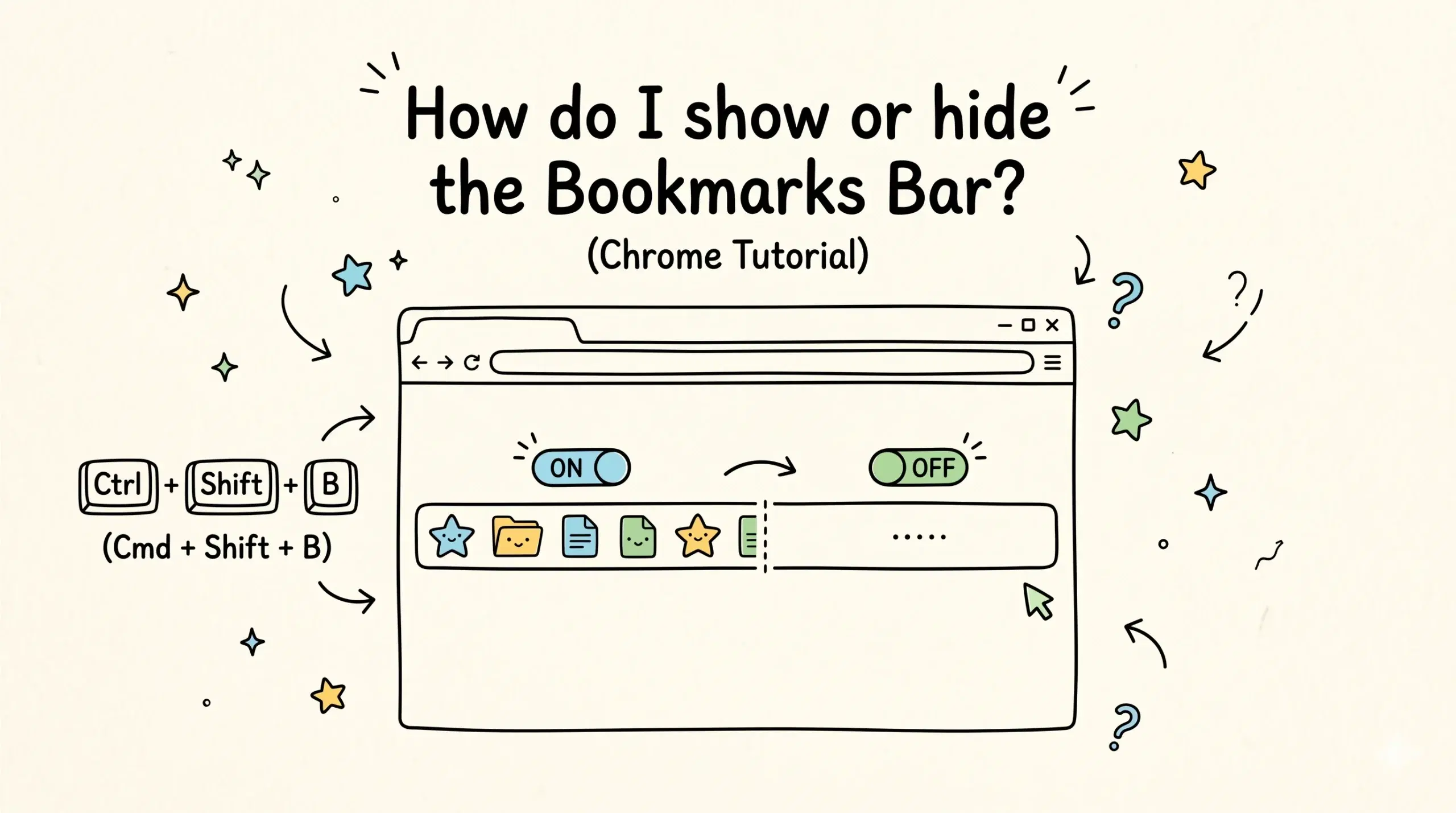
To show or hide the Bookmarks Bar in Chrome, press Ctrl plus Shift plus B on Windows or Command plus Shift plus B on Mac, or go to the Chrome menu, open Settings, and toggle the Bookmarks Bar option under Appearance.
Quick Ways to Toggle the Bookmarks Bar
- Use the keyboard shortcut Ctrl plus Shift plus B on Windows
- Use Command plus Shift plus B on Mac
- Right click near the address bar and toggle Show bookmarks bar
- Open Chrome settings and enable or disable it under Appearance
If you cannot find the bookmarks bar or it keeps disappearing, it is often tied to how Chrome handles bookmark visibility and profiles, which is covered in more detail in this access and usage troubleshooting guide.
Why the Bookmarks Bar Matters for Workflow
The bookmarks bar is the fastest way to access frequently used links, especially for developers and project managers managing multiple tools and resources. However, it becomes cluttered quickly without a structured system.
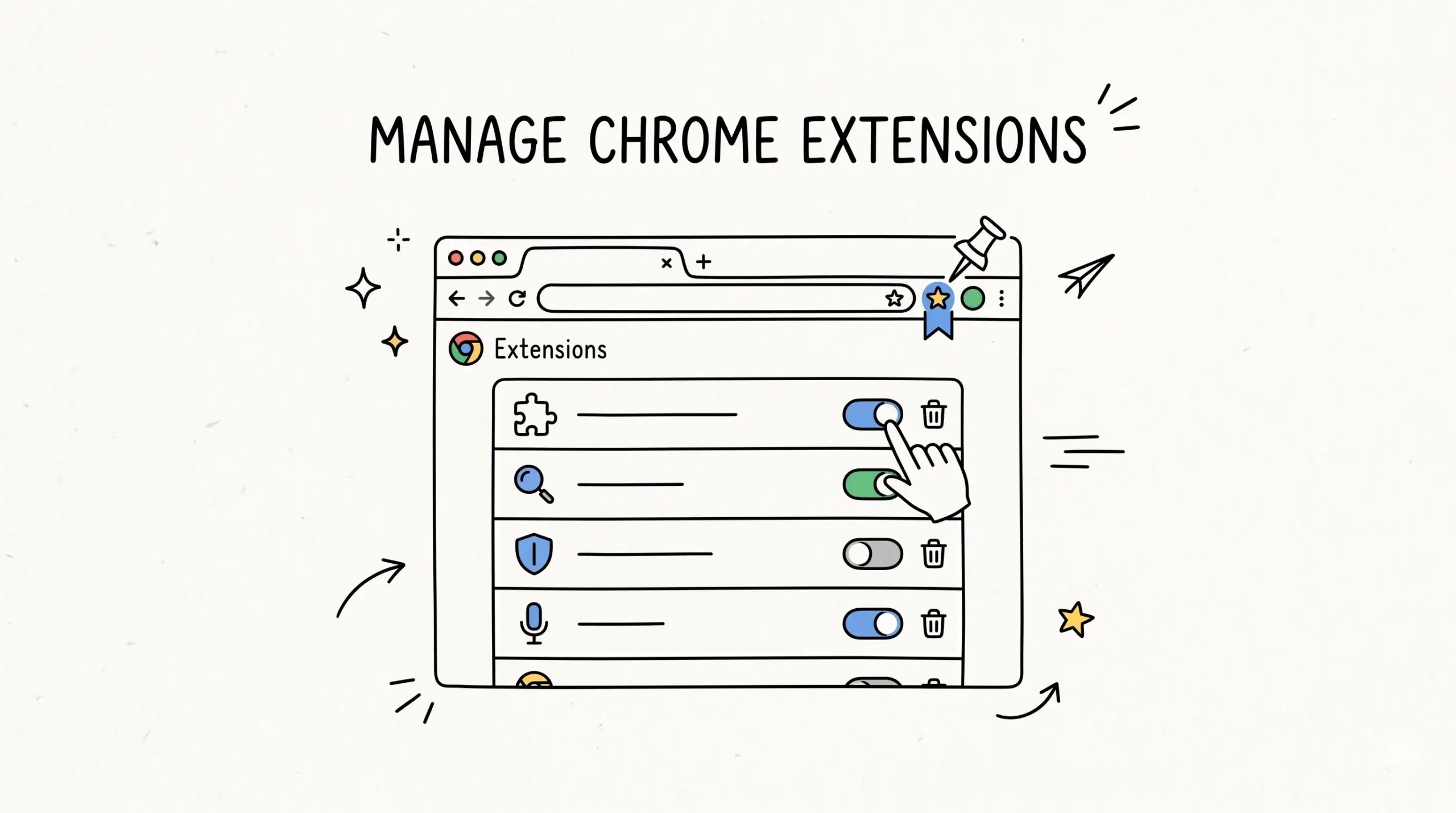
This is where a Chrome bookmark manager extension becomes essential. Instead of relying only on the bar, you can organize bookmarks into categories, apply tags, and retrieve them instantly without overcrowding your interface.
A structured chrome bookmark manager setup helps you move beyond basic visibility toggles and into a system where bookmarks are always accessible regardless of whether the bar is shown or hidden.
When to Show or Hide the Bookmarks Bar
- Show it when working with frequently accessed tools or dashboards
- Hide it when you need a clean browsing experience or more screen space
- Keep minimal bookmarks on the bar for faster navigation
- Use folders or extensions for deeper bookmark organization
Common Issues and What They Mean
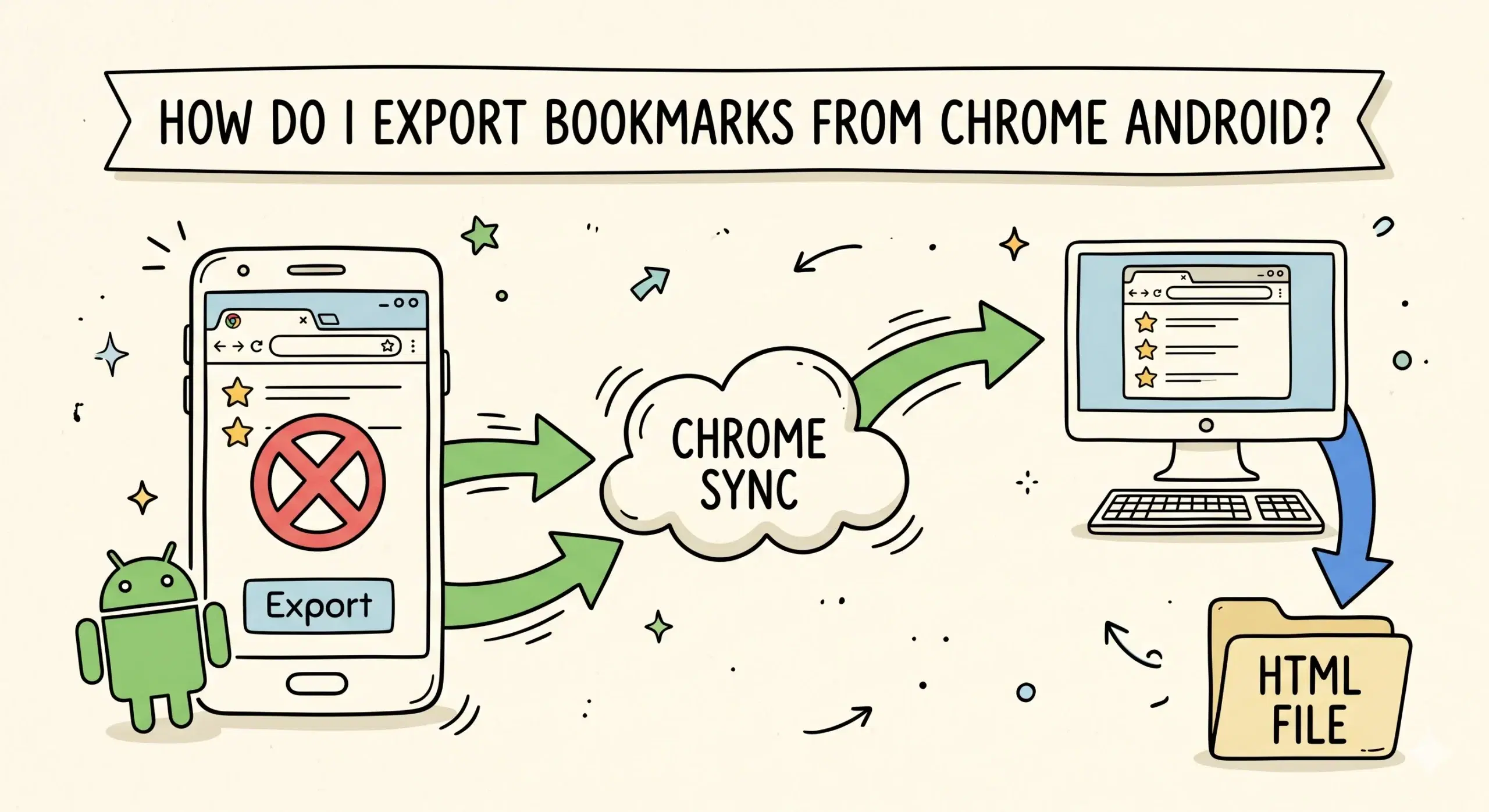
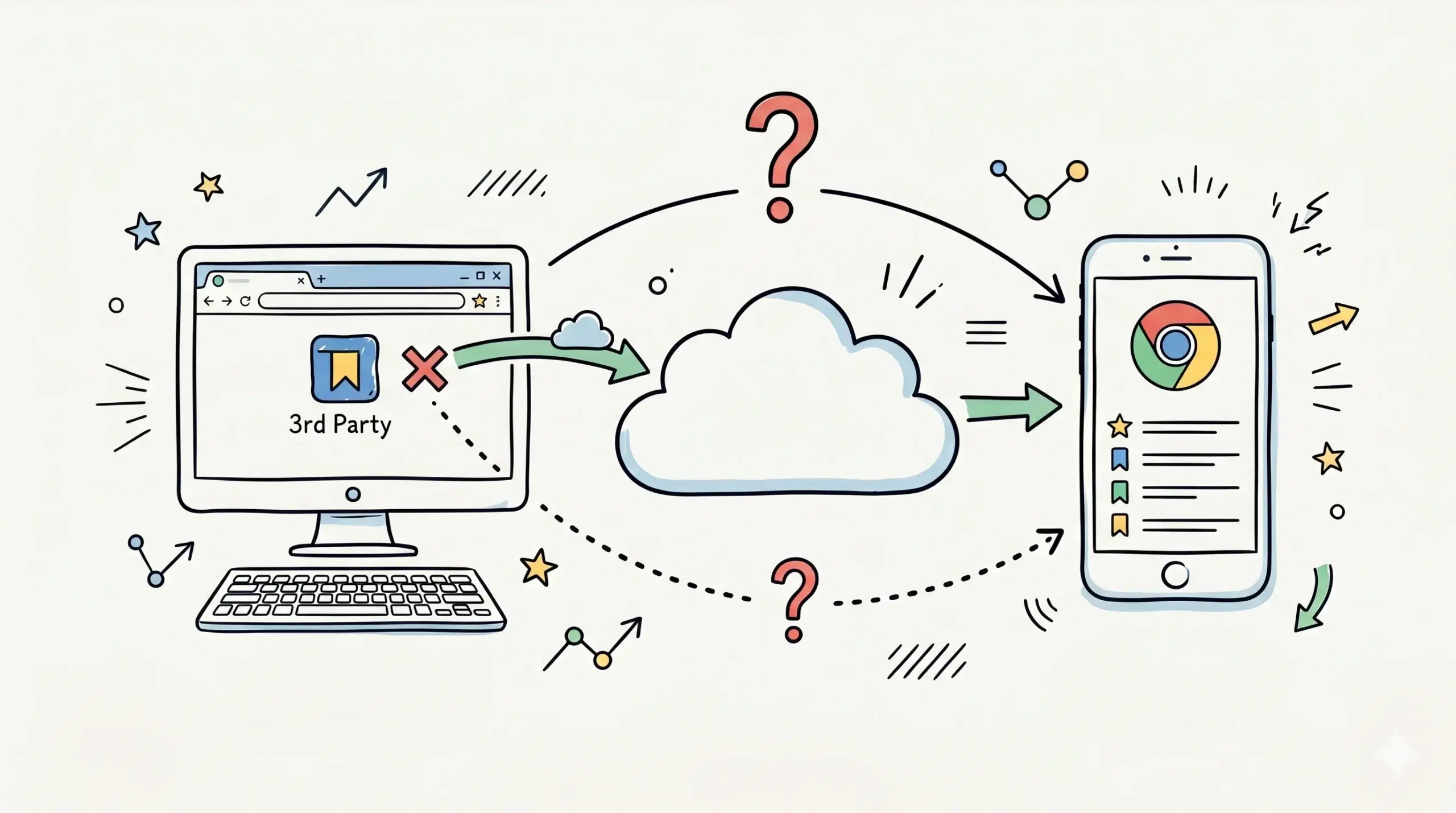
If the bookmarks bar does not appear even after enabling it, you may be in full screen mode or using a different Chrome profile. In some cases, bookmarks may not sync properly if sync is disabled.
Google notes that bookmarks only sync across devices when Chrome sync is enabled and tied to a signed in account, which explains why bookmarks may not appear consistently.
Research shows that reducing visual clutter improves task focus and efficiency, which supports the practice of hiding the bookmarks bar when not actively needed.
Practical Example
A web developer might keep only five essential tools pinned to the bookmarks bar while using a Chrome bookmark manager extension to store hundreds of categorized links. This keeps the interface clean while ensuring fast access when needed.
Why does my bookmarks bar disappear?
It may be turned off, hidden in full screen mode, or affected by profile or sync settings.
Can I customize what appears on the bookmarks bar?
Yes, you can drag bookmarks, create folders, and reorder items directly on the bar.
Is the bookmarks bar enough for managing many links?
No, it works best for quick access, while a Chrome bookmark manager extension handles large scale organization.
Take Control of Your Bookmarks
Go beyond the bookmarks bar and organize your links with a smarter Chrome bookmark manager system.