How do I organize bookmark folders on Android?
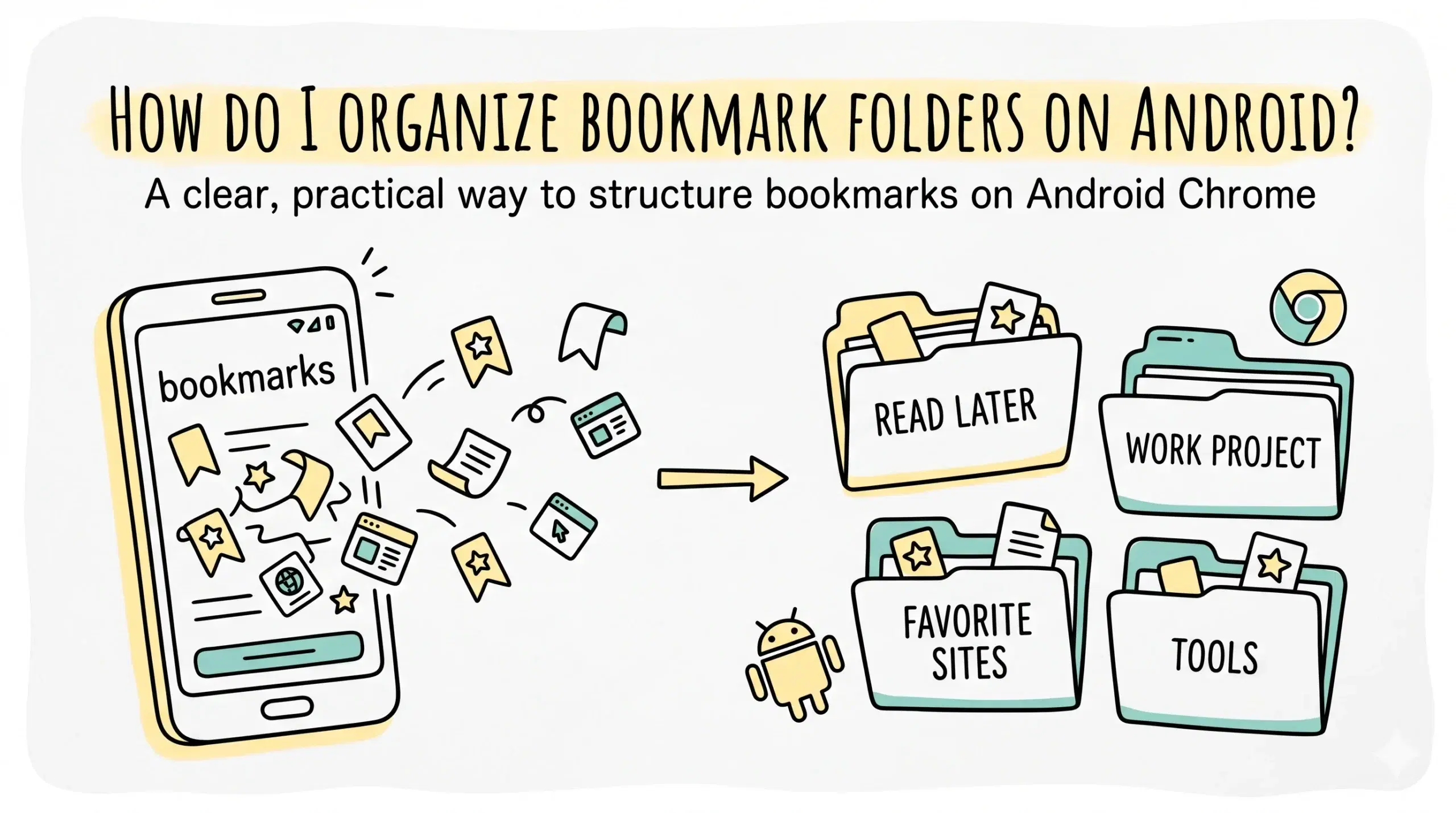
To organize bookmark folders on Android Chrome, open Chrome, go to bookmarks, create folders, and move saved pages into those folders using edit and move options, while using a Chrome bookmark manager extension to maintain structure across devices.
Step by step: organizing bookmarks on Android Chrome
Android Chrome offers basic bookmark management, but the key to effective organization is how you structure folders from the start. Follow this workflow for clarity and speed.
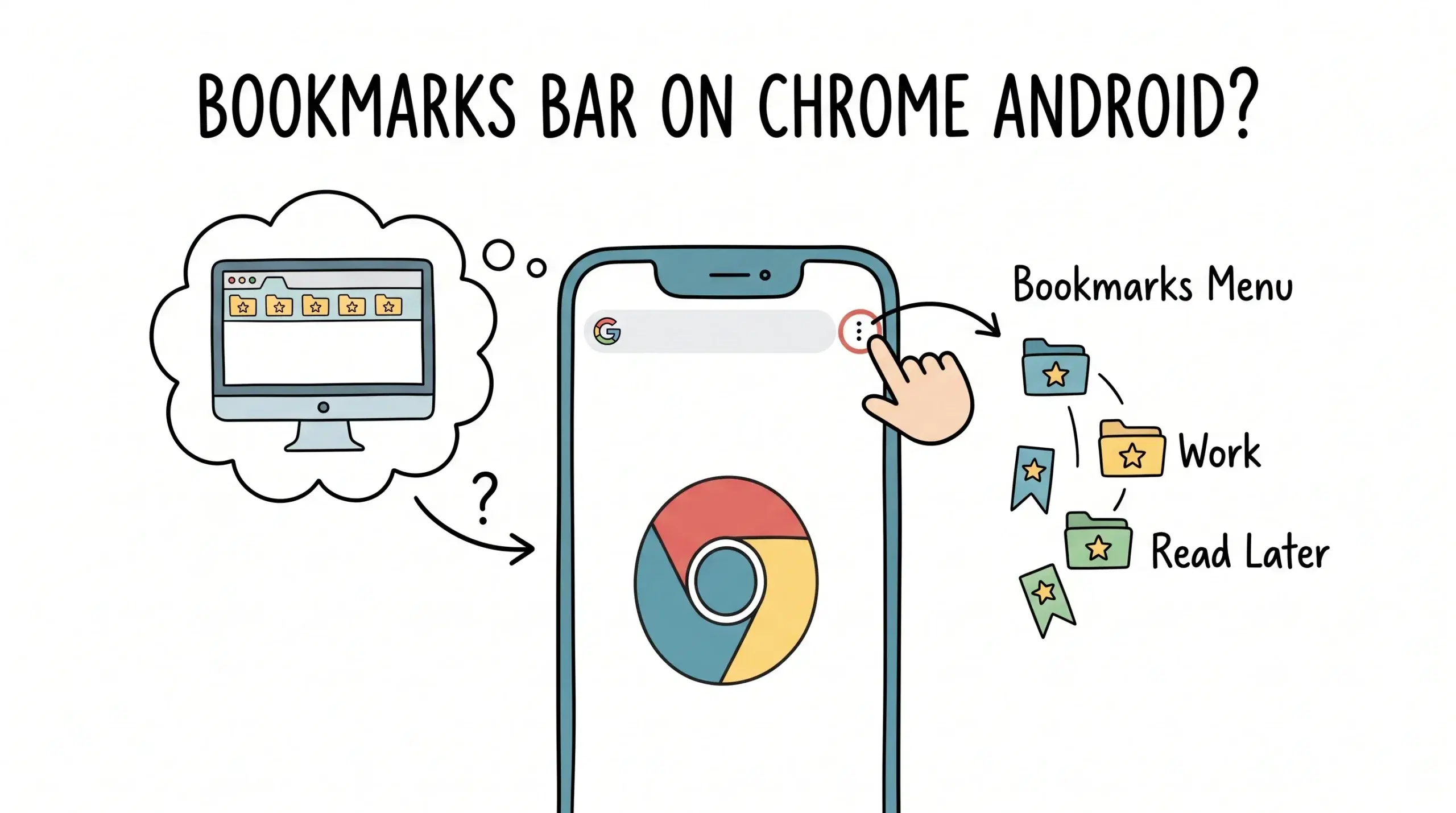
- Open Chrome and tap the three dot menu
- Go to Bookmarks
- Tap and hold a bookmark to edit or move it
- Create a new folder using the add folder option
- Move bookmarks into relevant folders
- Rename folders to reflect tasks or categories clearly
This native approach works, but it becomes limiting as your bookmark volume grows. That is where a structured system supported by a Chrome bookmark manager extension becomes essential.
If you want consistent organization across Android and desktop, the platform specific workflow for bookmark manager chrome android users shows how to extend folder structures beyond mobile limitations and keep everything aligned.
How to structure folders for real productivity
Most users create folders randomly, which leads to clutter. A better approach is to align folders with how you actually work.
- Use project based folders such as client names or active workstreams
- Group by action such as read later, tools, references
- Avoid deep nesting beyond two levels
- Keep frequently used folders at the top
- Archive inactive folders instead of deleting them
For project managers and developers, this approach reduces friction when switching between tasks and improves retrieval speed significantly.
A broader chrome bookmark manager approach helps unify your Android and desktop bookmark systems so folders remain consistent regardless of device.
Limitations of Android Chrome bookmark management
Android Chrome does not provide advanced sorting, tagging, or bulk editing. This creates friction when managing large bookmark sets or complex workflows.
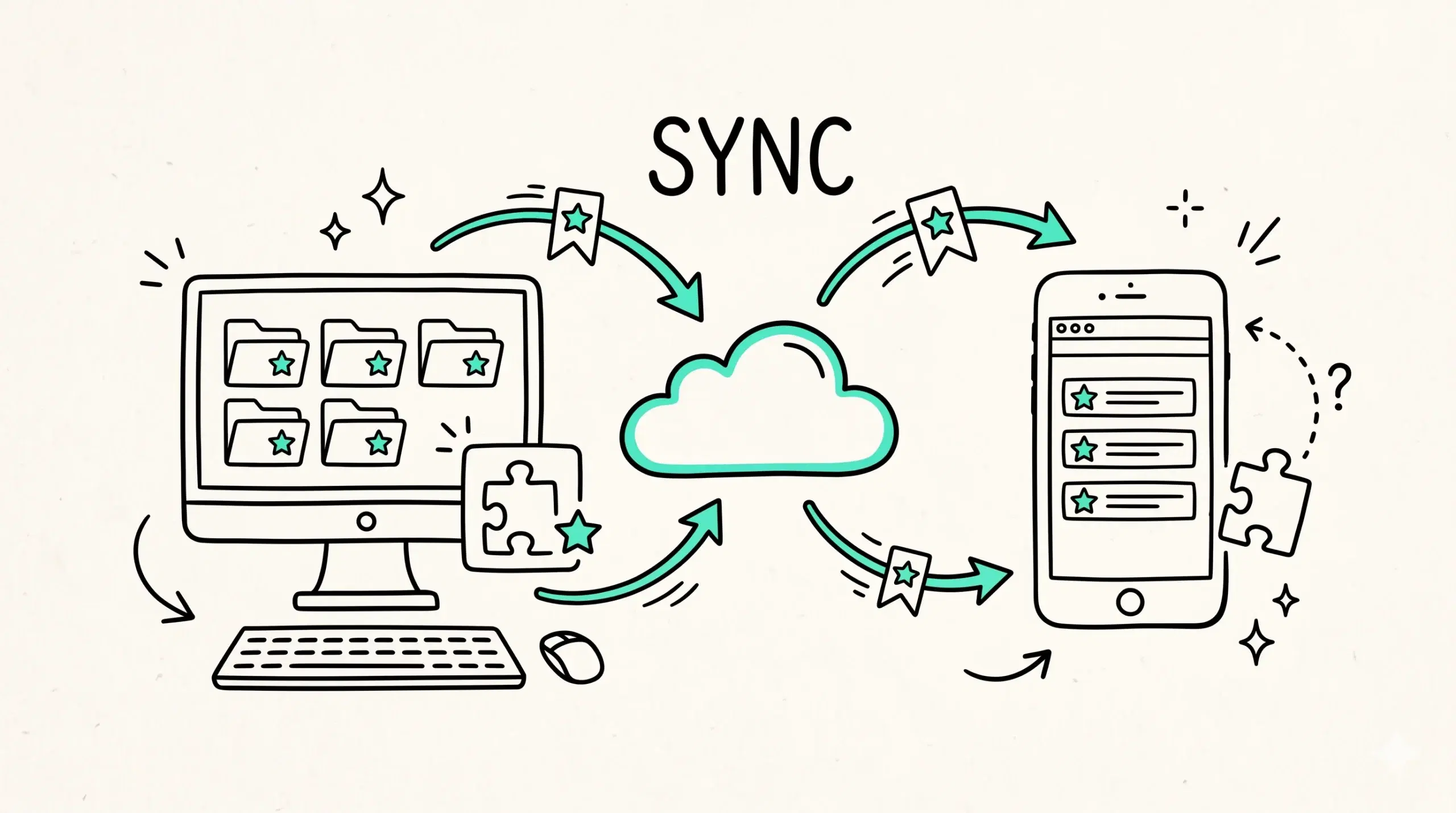
Chrome bookmarks sync across devices when signed into a Google account, which means your folder structure on Android can mirror desktop setups if maintained correctly.
However, syncing alone does not solve structural issues. Without a system, clutter simply spreads across devices.
On Android, editing bookmarks is limited to manual actions such as renaming and moving items, which makes scaling organization difficult compared to desktop tools.
Best workflow: combine Android and extension based management
The most effective setup is hybrid. Use Android Chrome for quick saves and access, and rely on a Chrome bookmark manager extension for deeper organization.
- Save bookmarks quickly on Android
- Organize them later on desktop using structured folders
- Sync changes across devices automatically
- Maintain consistent naming and hierarchy
Example workflow
A developer researching tools during the day saves links into a temporary folder on Android. Later, they organize those links into project specific folders using a bookmark manager extension, ensuring everything is categorized and easy to retrieve.
Can I create folders directly in Android Chrome?
Yes, you can create folders within the bookmarks section, but options are basic and lack advanced sorting features.
Why use a Chrome bookmark manager extension if Android already has bookmarks?
Android Chrome handles simple storage, but extensions provide structure, bulk editing, and workflow based organization.
Do bookmark folders sync between Android and desktop?
Yes, if you are signed into Chrome, your bookmarks and folders sync across devices automatically.
Organize your bookmarks the right way
Turn scattered bookmarks into a structured system that works across Android and desktop.