How do I show or hide the bookmarks bar in Chrome?
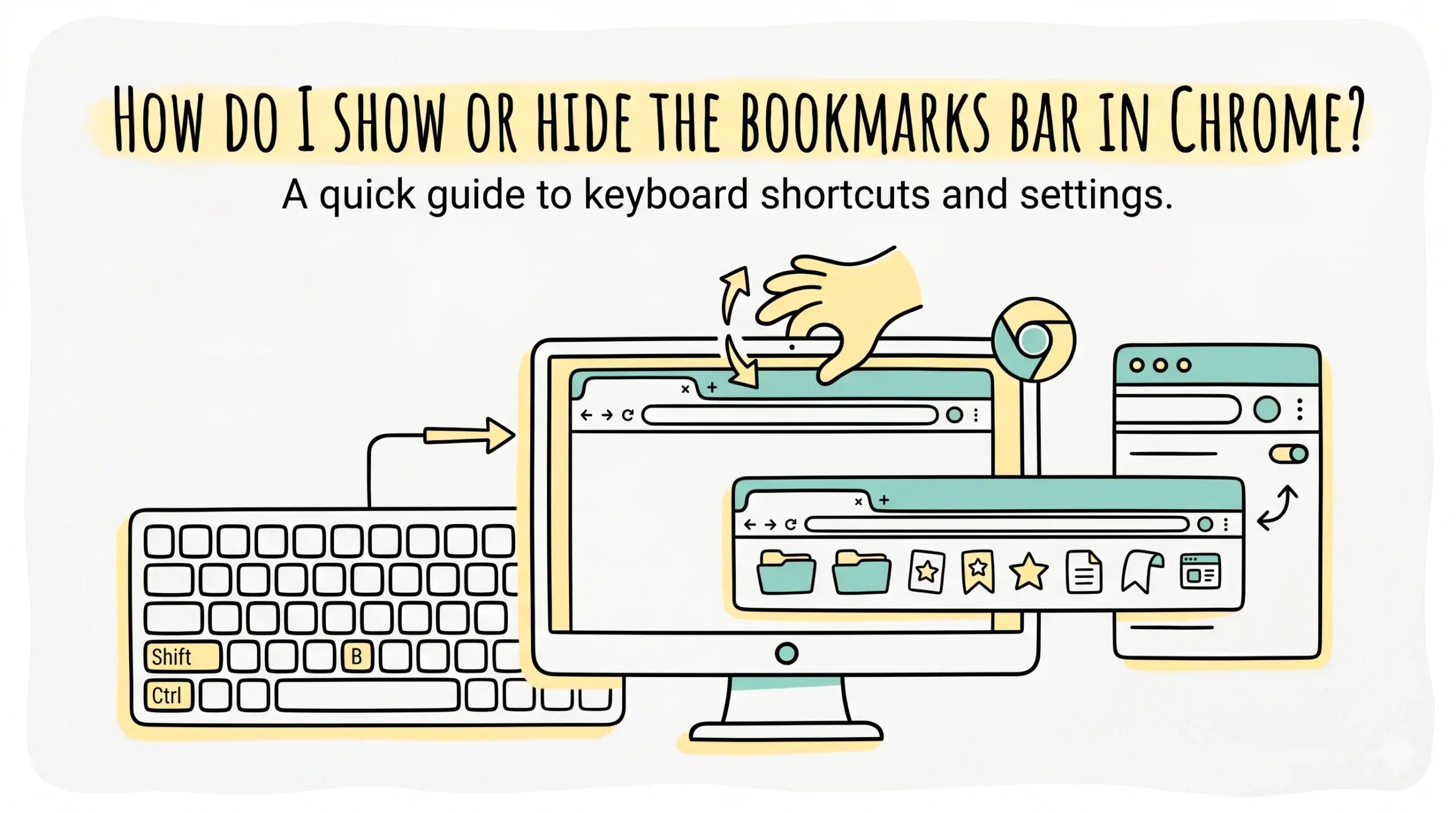
To show or hide the bookmarks bar in Chrome, use the keyboard shortcut Ctrl plus Shift plus B on Windows or Cmd plus Shift plus B on Mac, or enable or disable it from the Chrome settings menu under appearance.
Fastest way: bookmark manager chrome shortcut
The quickest method is the keyboard shortcut. Press Ctrl plus Shift plus B and the bookmarks bar instantly toggles on or off. This is the most efficient way to control visibility during active work sessions.
- Windows and Linux use Ctrl plus Shift plus B
- Mac uses Cmd plus Shift plus B
- Works instantly without opening settings
- Ideal for switching between focused and navigation modes
For professionals managing multiple tabs and resources, this shortcut reduces friction and keeps the interface clean when needed.
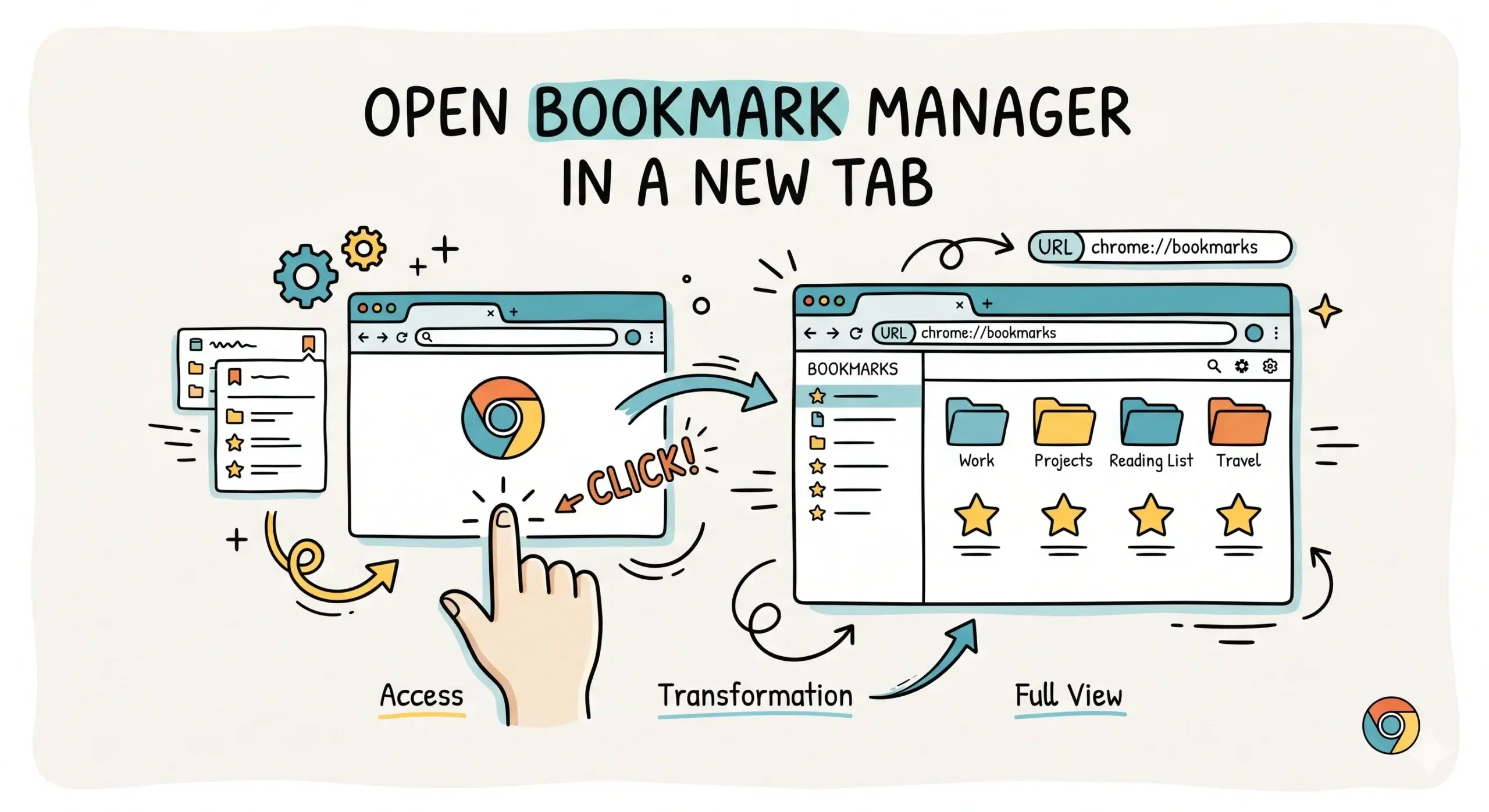
Once the bookmarks bar is visible, the real value comes from how you organize it using a structured bookmark organizer with advanced features that go beyond default Chrome behavior.
Alternative method: show or hide from Chrome settings
If you prefer using menus, Chrome also allows you to control the bookmarks bar through settings.
- Open Chrome menu using the three dot icon
- Go to Settings
- Navigate to Appearance
- Toggle the show bookmarks bar option on or off
This method is slower but useful if you are configuring Chrome for the first time or managing multiple display preferences.
A complete chrome bookmark manager setup helps you go beyond simply showing or hiding the bar by improving how bookmarks are structured, grouped, and retrieved.
Why the bookmarks bar alone is not enough
The bookmarks bar is designed for quick access, but it becomes cluttered quickly when storing many links. Without a system, it turns into a horizontal list of unrelated items.
Chrome allows bookmarks to be stored in folders within the bookmarks bar, but managing large sets without additional tools can become inefficient over time.
This limitation is especially noticeable for developers and project managers who handle dozens of resources daily.
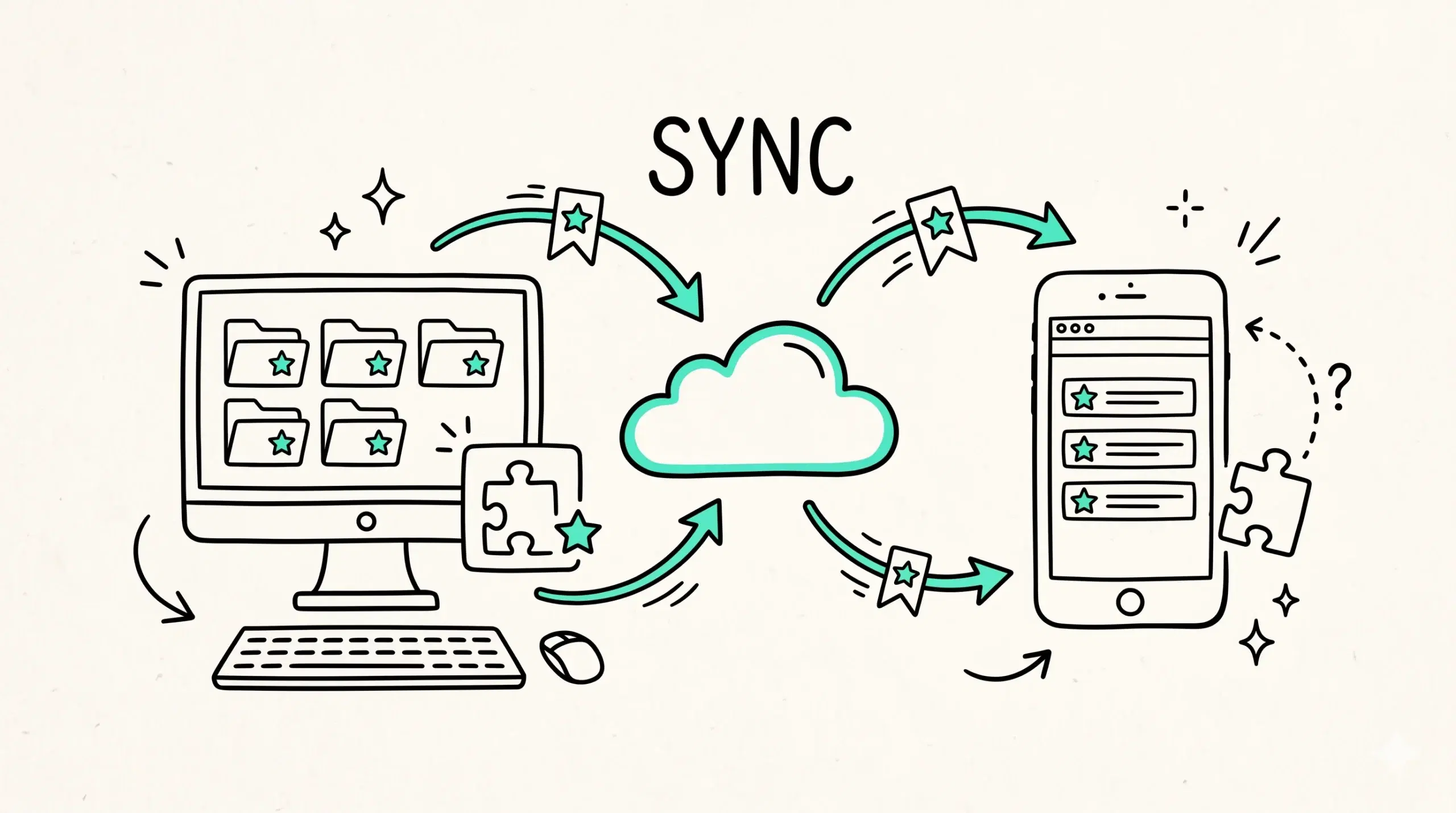
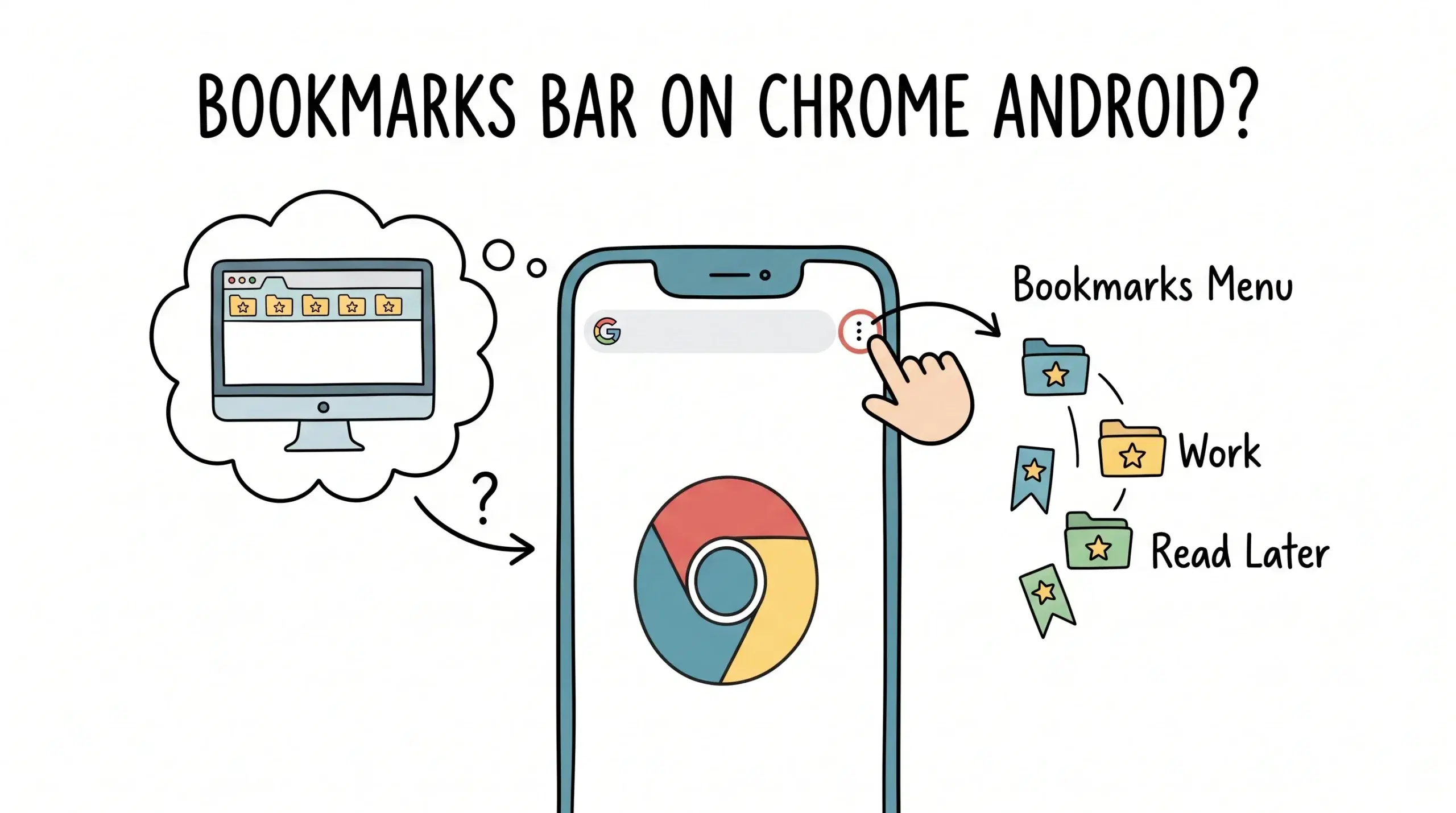
Bookmarks in Chrome are part of a synced system tied to your Google account, meaning changes to visibility and structure affect all devices where sync is enabled.
Best workflow: visibility plus organization
The most effective approach is to treat the bookmarks bar as a quick access layer while managing the actual structure with a bookmark management software solution.
- Keep only priority links on the bookmarks bar
- Use folders for grouped shortcuts
- Store the full library in a visual bookmarking tool
- Use consistent naming for faster retrieval
Example use case
A project manager keeps active tools such as dashboards and documentation links visible on the bookmarks bar, while the rest of the resources are categorized inside an online bookmark manager for deeper access when needed.
Why is my bookmarks bar not showing in Chrome?
It is likely turned off. Use the shortcut Ctrl plus Shift plus B or enable it in Chrome settings under appearance.
Can I organize bookmarks directly on the bookmarks bar?
Yes, you can drag bookmarks and create folders, but organization is limited without advanced tools.
Does hiding the bookmarks bar delete my bookmarks?
No, hiding only affects visibility. All bookmarks remain saved and accessible.
Take control of your bookmarks
Go beyond basic Chrome features and organize your bookmarks into a system that actually works.