Is there a shortcut to bookmark all open tabs at once?
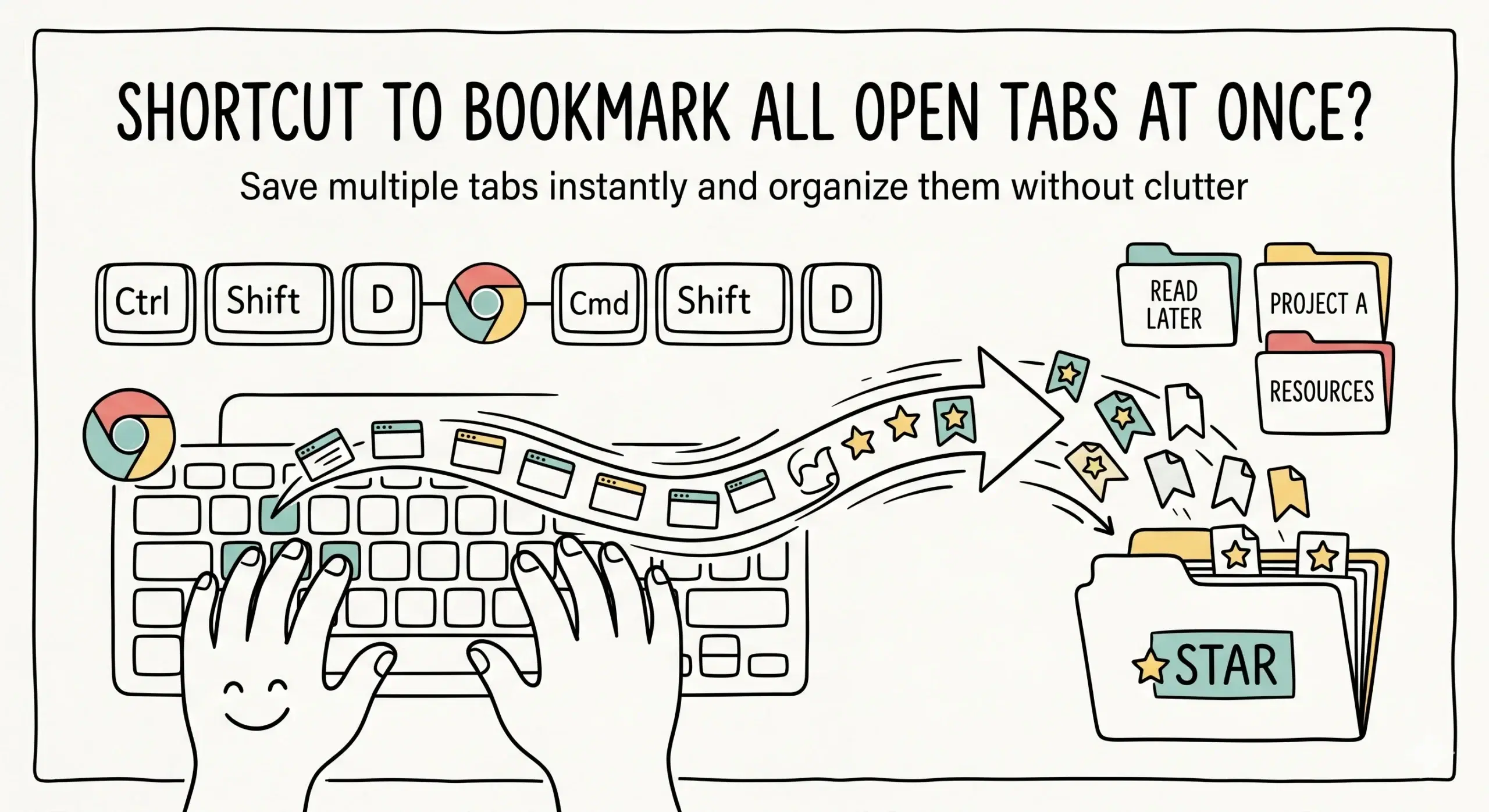
Yes, Chrome provides a shortcut to bookmark all open tabs at once by pressing Ctrl plus Shift plus D on Windows or Cmd plus Shift plus D on Mac, which saves every open tab into a new folder.
How the bookmark all tabs shortcut works
The bookmark manager chrome shortcut instantly captures your entire browsing session and stores it in a single folder.
- Press Ctrl plus Shift plus D or Cmd plus Shift plus D
- Choose or create a folder name
- Save all currently open tabs together
- Access them later as a grouped set
This feature is especially useful when switching contexts, saving research sessions, or organizing multiple resources quickly.
Using advanced bookmark organizer features helps you manage these saved tab groups more effectively by structuring them into meaningful categories instead of leaving them as bulk folders.
Where saved tab groups can become messy
While bookmarking all tabs is fast, it can quickly lead to clutter if not managed properly.
- Multiple folders with unclear names
- Duplicate or outdated links
- Difficulty finding specific pages later
- Lack of consistent structure
Without a system, bulk saved bookmarks often become harder to use than individual bookmarks.
A complete chrome bookmark manager system ensures that grouped bookmarks remain organized, searchable, and aligned with your workflow.
What Chrome actually does when you bookmark all tabs
When you use the shortcut, Chrome creates a folder and places each open tab as a separate bookmark inside it.
Chrome allows users to save all open tabs into a single folder through built in bookmarking features, making it easier to revisit sessions later.
This is efficient for capture, but it does not automatically organize or categorize the content beyond that folder.
Browser session saving is commonly used in productivity workflows to preserve context, but it requires additional organization to remain useful over time.
Best workflow for bookmarking multiple tabs
To get the most value from this shortcut, combine quick saving with structured organization.
- Name folders based on projects or tasks
- Review and clean up saved tabs regularly
- Move important links into permanent folders
- Use a visual bookmarking tool for better clarity
Example scenario
A project manager working on multiple client tasks bookmarks all open tabs at the end of the day into separate folders. Later, they reorganize key links into structured categories using a bookmark management software system for faster access.
Does bookmarking all tabs slow down Chrome?
No, it simply saves links and does not affect browser performance significantly.
Can I reopen all bookmarked tabs at once?
Yes, you can open all bookmarks in a folder to restore your session.
Is there a better way to manage many saved tabs?
Yes, using a structured bookmark manager extension helps organize and retrieve them efficiently.
Organize your saved tabs effectively
Turn bulk saved bookmarks into a clean, structured system with a Chrome bookmark manager extension.