Where is the Bookmark Manager on Chrome for Android/iOS?
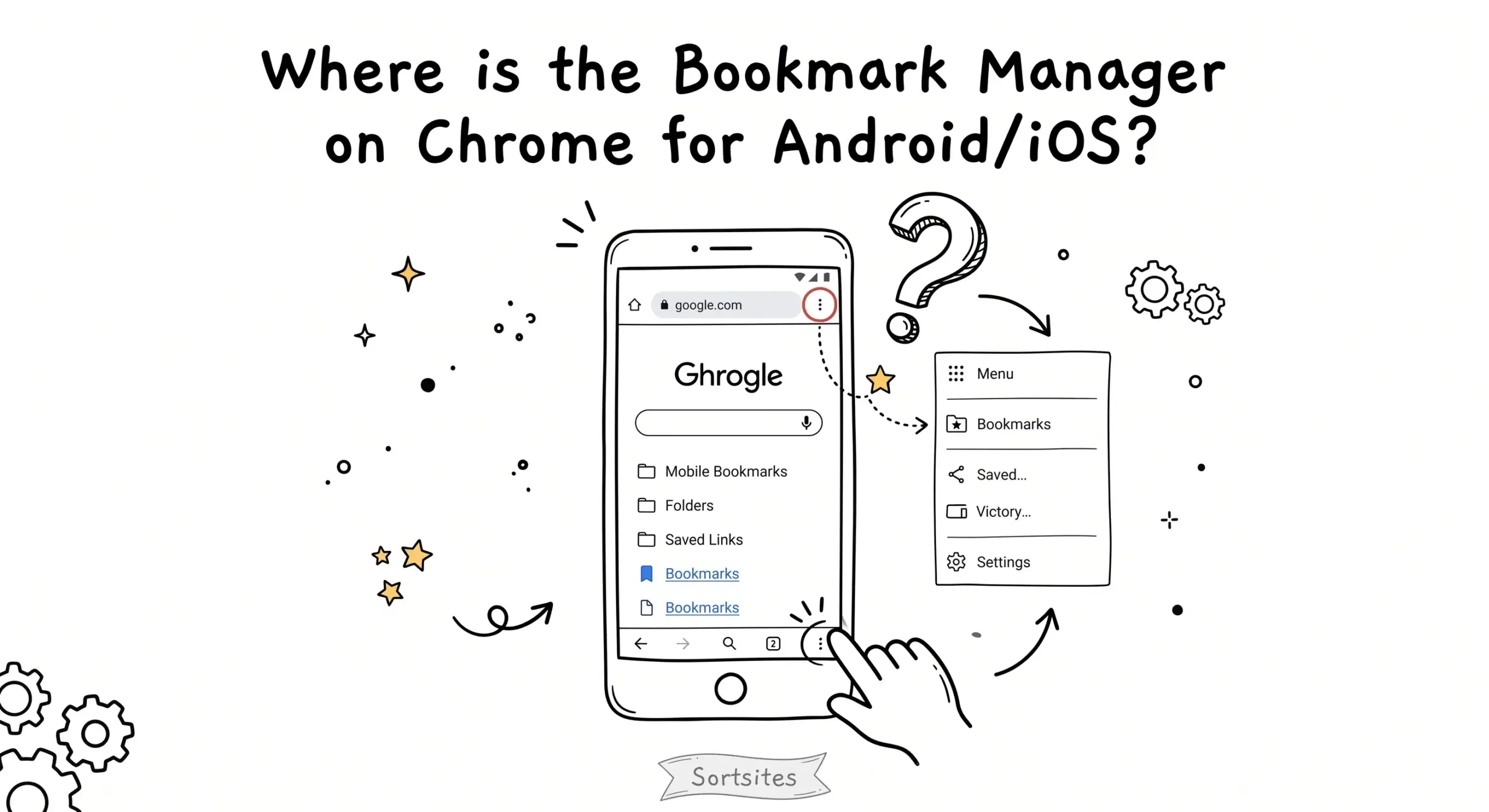
The bookmark manager in Chrome for Android and iOS is located inside the browser menu under the Bookmarks section, but it is not a full standalone manager like on desktop and is limited to basic viewing, sorting, and editing.
Where to find the bookmark manager on Android
On Android, Chrome hides the bookmark manager within the main menu rather than exposing it as a separate interface. This often leads to confusion when users search for where is bookmark manager in Chrome.
- Open Chrome browser
- Tap the three dot menu in the top right corner
- Tap Bookmarks
- Browse folders or search bookmarks
Where to find the bookmark manager on iOS
On iOS, the bookmark manager follows a similar pattern but is accessed from the bottom menu, which changes the navigation slightly.
- Open Chrome browser
- Tap the three dot menu at the bottom right
- Tap Bookmarks
- Navigate folders or edit saved links
If you are struggling with access issues or cannot find bookmark manager in Chrome consistently, this guide on access and usage problems explains common navigation limitations and how to work around them.
Why the mobile bookmark manager feels limited
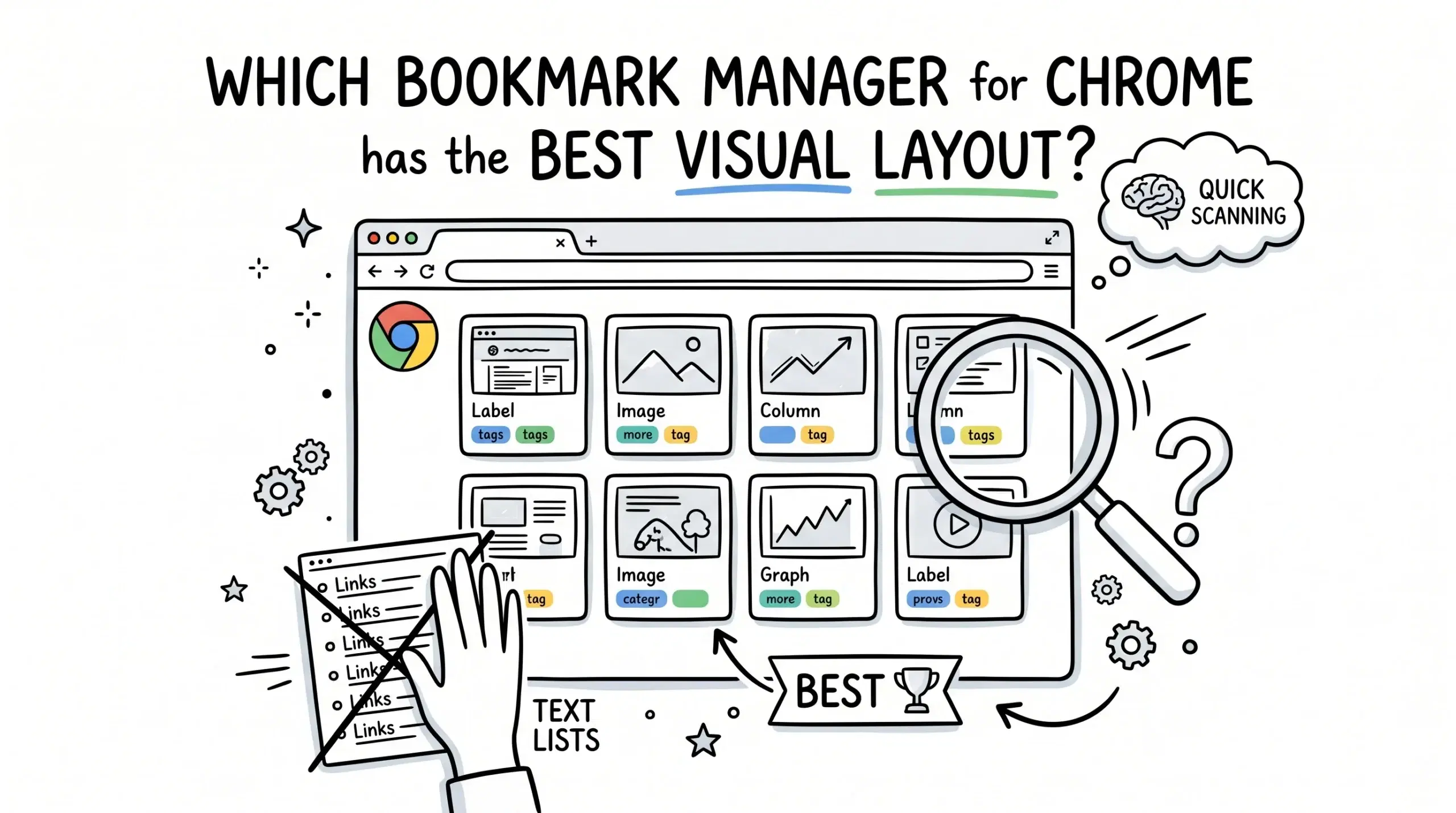
Chrome on mobile is designed for quick access rather than deep organization. Unlike desktop, it lacks visual layouts, bulk actions, and advanced categorization, which creates friction for users managing large numbers of bookmarks.
For example, a developer saving multiple documentation links may find it difficult to scan or reorganize bookmarks efficiently on mobile due to the linear list structure.
Google documentation confirms that mobile Chrome focuses on simplified bookmark access rather than full management features, which explains why advanced organization tools are missing.
A better workflow for managing bookmarks across devices
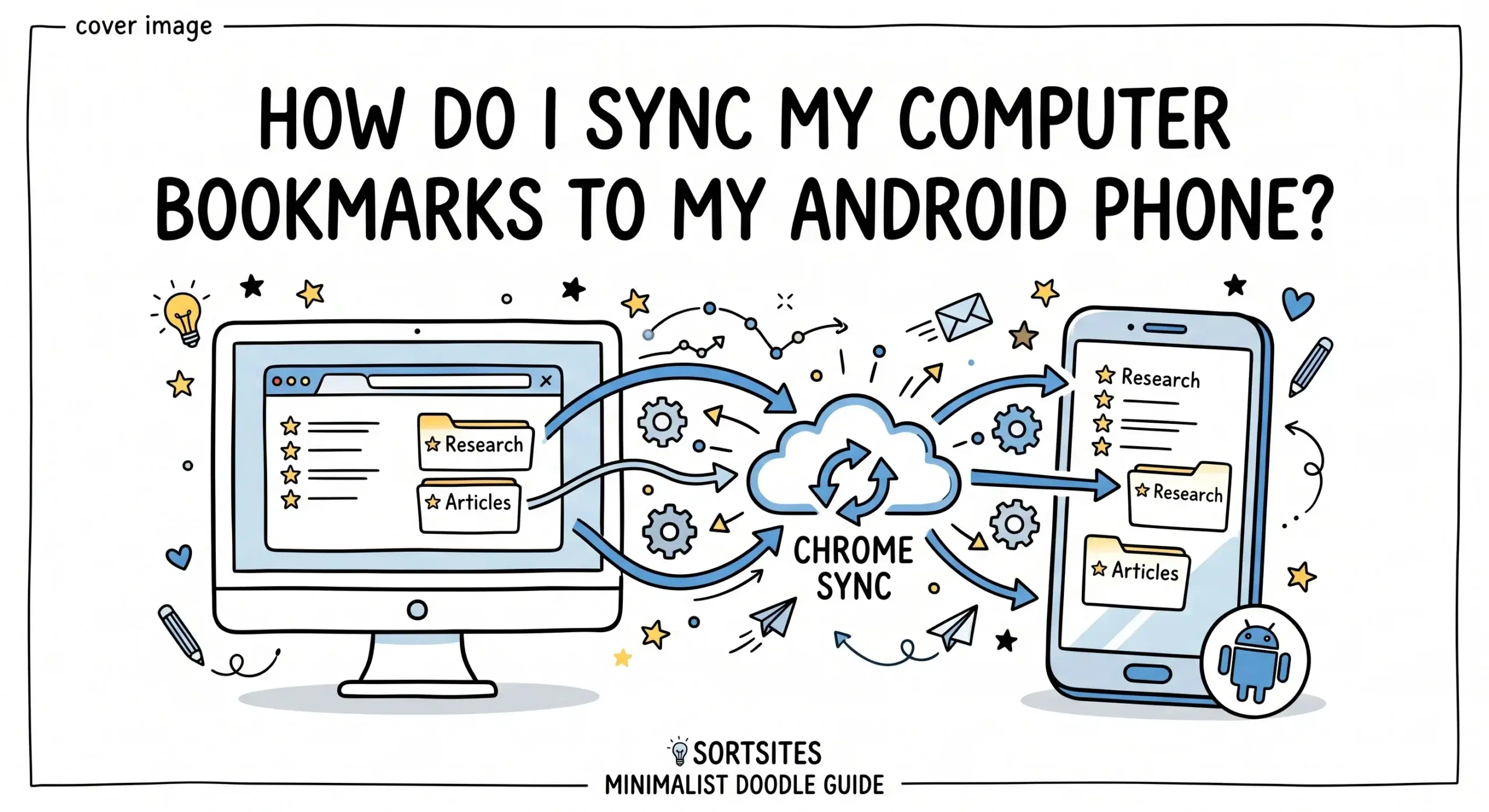
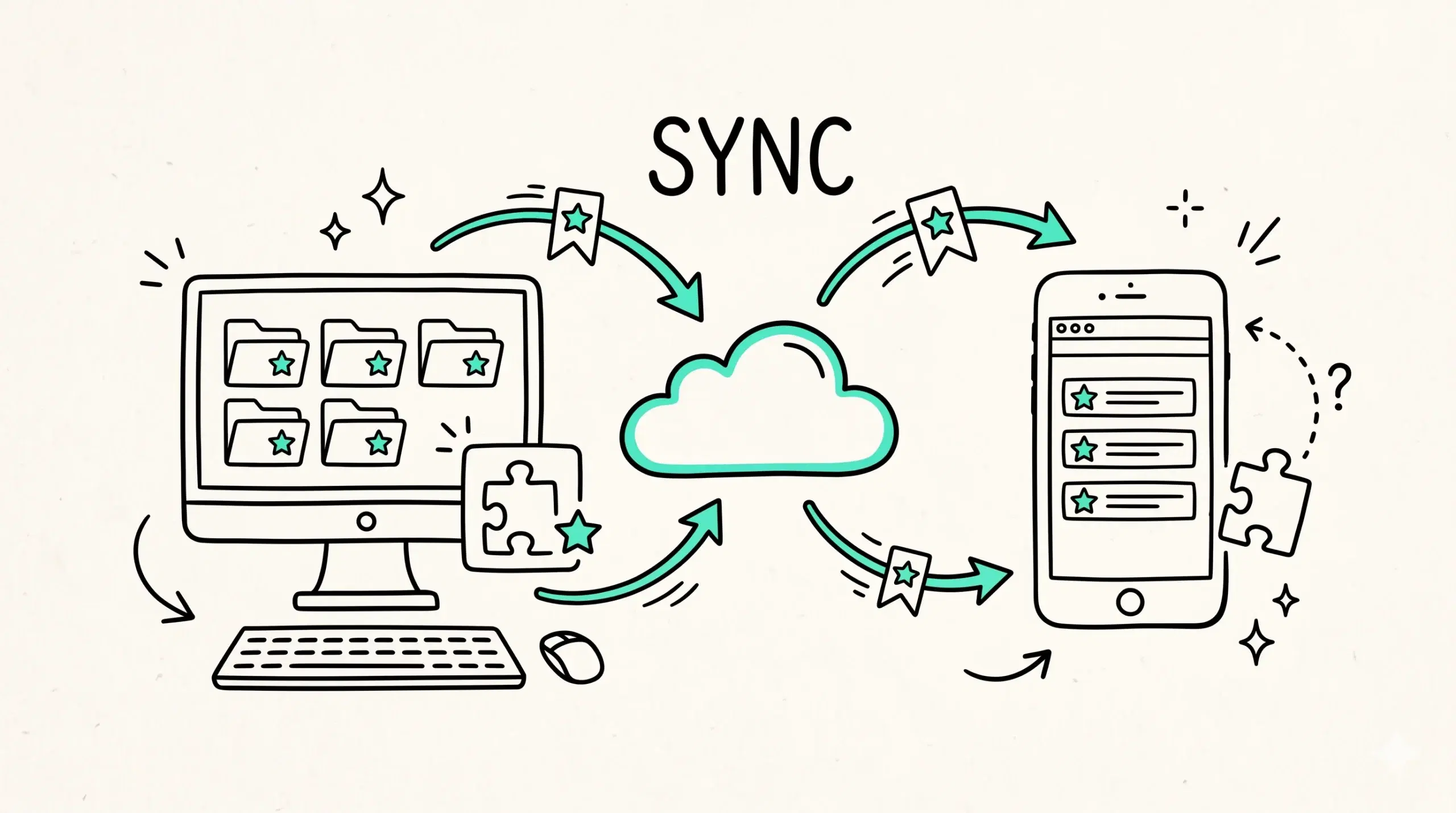
Since mobile bookmark management is limited, the most effective approach is to organize bookmarks using a Chrome bookmark manager extension on desktop and then access them on mobile through sync. This keeps your structure clean while still allowing mobile access.
For a complete understanding of how Chrome bookmark managers work across devices and how to structure them for better workflows, refer to this Chrome bookmark manager overview.
Research on mobile usability shows that simplified interfaces often reduce functionality in favor of speed, which directly impacts how bookmark management works on mobile browsers.
Why can I not find a full bookmark manager on Chrome mobile
Chrome mobile only provides a simplified bookmarks section rather than a full management interface like desktop.
Can I organize bookmarks properly on Android or iOS
You can create folders and edit bookmarks, but advanced organization and visual layouts are limited.
What is the best way to manage bookmarks for mobile use
Use a Chrome bookmark manager extension on desktop for organizing, then access bookmarks on mobile through Chrome sync.
Organize bookmarks beyond mobile limitations
Use a structured Chrome bookmark manager to organize once and access everywhere without friction.